Faster onboarding, surveys in your store's language, and a Thank you page guide
Getting from install to your first response is shorter now. Onboarding asks two questions instead of three. AI writes the survey in the language your store uses. When a survey goes on your Thank you page, the app walks you through the last step. That step is adding the block in the checkout editor, which the app cannot do for you.
Available on all plans. The changes apply to new installs and to every survey you save from now on.
What changed
Two questions, then a draft. The survey path of onboarding no longer asks for your store category. After you pick Survey on the first screen, a short intro tells you AI will write your first survey. It moves on by itself after about two seconds, or earlier when you click it. The second screen asks what you want to learn and takes optional notes. Click Generate survey to get your draft. The quiz path keeps its category question.
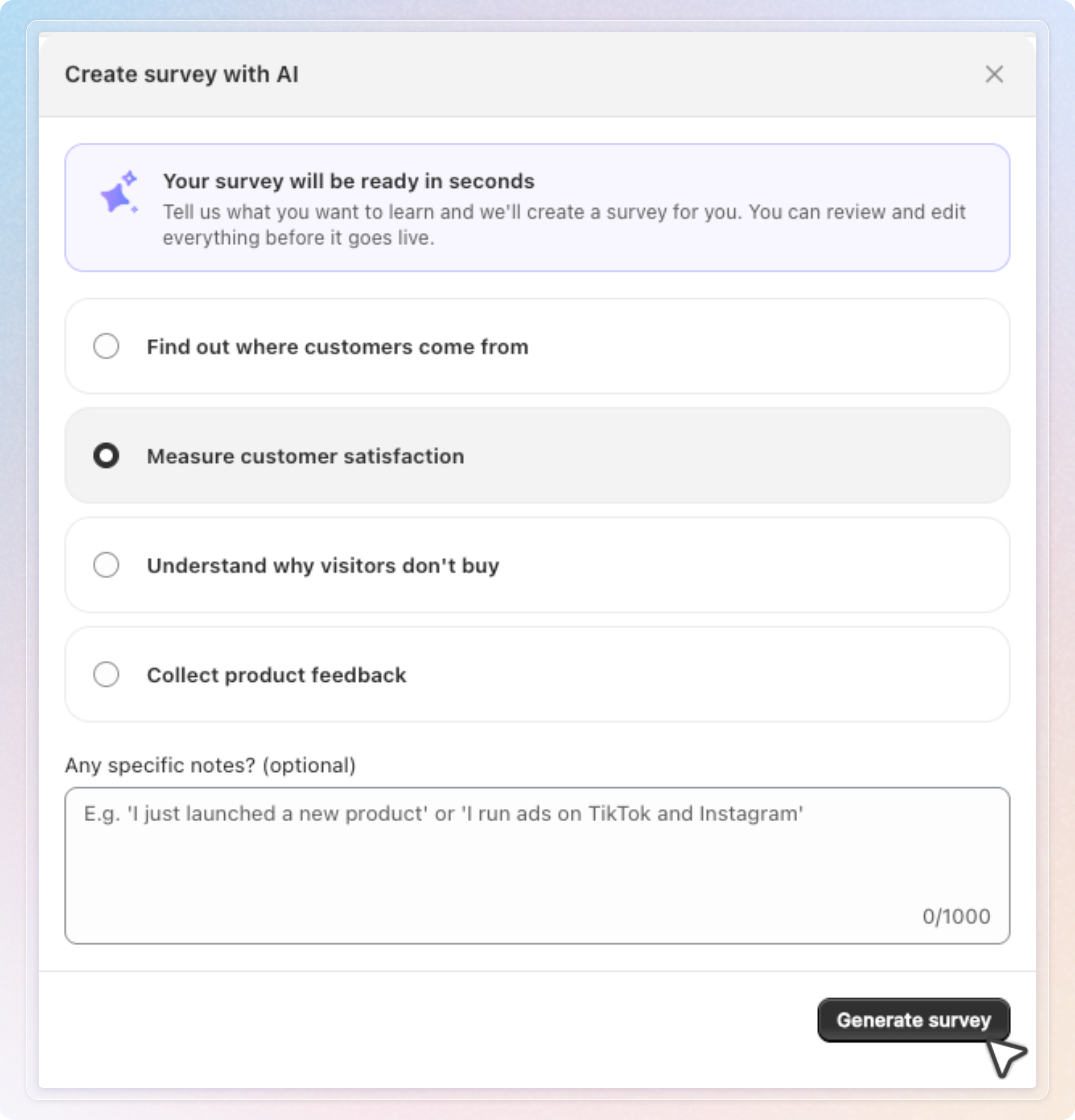
Create with AI is one step. On the Surveys page, Create new survey then Create with AI opens a single screen. Pick a goal, add notes, and click Generate survey. The industry picker is gone.
Room for longer notes. The notes field in both places accepts up to 1,000 characters, up from 500. A counter is always visible and a warning appears at 900. The field stops at 1,000 characters.
Your store's language, automatically. AI writes the survey in your store's primary language. If that is not available, it uses the language you use in the app, then English. The thank-you card follows the same language. Notes written in another language do not change this. If your notes ask for a specific language, for example "write it in French", AI follows the request.
AI surveys open as drafts. The survey AI writes opens in the editor without being saved. Nothing is created until you click Save. Discard it and nothing is left behind.
Thank you page comes first. In the editor, Thank you page now sits at the top of the channel list. It is also the default placement for AI surveys. The goal "Understand why visitors don't buy" goes to Exit intent instead.
A guide when you save. The first time you save a survey with Thank you page turned on, a guide opens. It has three steps:
- Open the checkout editor.
- Add the SEA Survey — Block or SEA Survey — Announcement bar block, matching your display type.
- Click Save in the editor.
The guide opens again when you switch display type and save. It stops once your store receives a response from the Thank you page. Reopen it any time with View instruction in the channel's Display setting card.
A reminder when a survey stays silent. A Thank you page survey that runs for seven days with orders but no responses gets one reminder. You receive an email, "A quick check on [survey name]", and Home shows a banner. The banner's Walk me through it button opens the same guide. No orders, no reminder.
A checklist you can trust. On Home, Visualize how it appears is ticked only when a shopper can really see your survey. That means one of two things. A response arrived from the Thank you page, an on-site survey, or an exit intent survey. Or an on-site or exit intent survey is active while the app embed is on. Activate survey shows only while no survey is active. Add Thank-you page block disappears once the block is detected. View on store always stays. The checklist re-checks every minute.
Where your survey will show. After you save an AI survey, Home states where it appears. For example, "Your survey will show right after customers check out." A Change where it shows button opens the channel settings.
How to use: Create a survey with AI, click Save, and follow the Thank you page guide that opens. On Home, watch Visualize how it appears get its tick when the first response arrives.
Things to know
- If you skip onboarding, Create with AI on the Home checklist is the way back to the AI flow.
- If your plan's active survey limit is reached, the AI survey is saved as inactive and Home says why.
- If Visualize how it appears was ticked before this release, it is re-checked by the new rule. The tick may disappear until a shopper can really see your survey.
See Create a survey automatically with AI and Thank-you page for checkout extensibility for the full walkthroughs.