Sell subscription plans on your quiz result page
Your quiz can sell its recommended products as subscriptions, right on the result page.
Shoppers pick a delivery frequency and add the plan to cart. They never leave the quiz.
Available on all plans. SEA Survey does not create subscription plans. It sells the plans your subscription app already set up in Shopify, for example with Joy Subscriptions.
Before you start
- Your store's payment provider must support subscriptions. Shopify decides this. Check Settings and then Payments in your Shopify admin.
- Install a subscription app that uses Shopify selling plans. Joy Subscriptions is free to start.
- Create a plan for at least one product in your quiz. Plans live in the subscription app, not in SEA Survey.
Turn on subscriptions for a quiz
- Go to Surveys & quizzes, then open the Quiz list tab.
- Open the quiz.
- On Build quiz, click Result page in the content list.
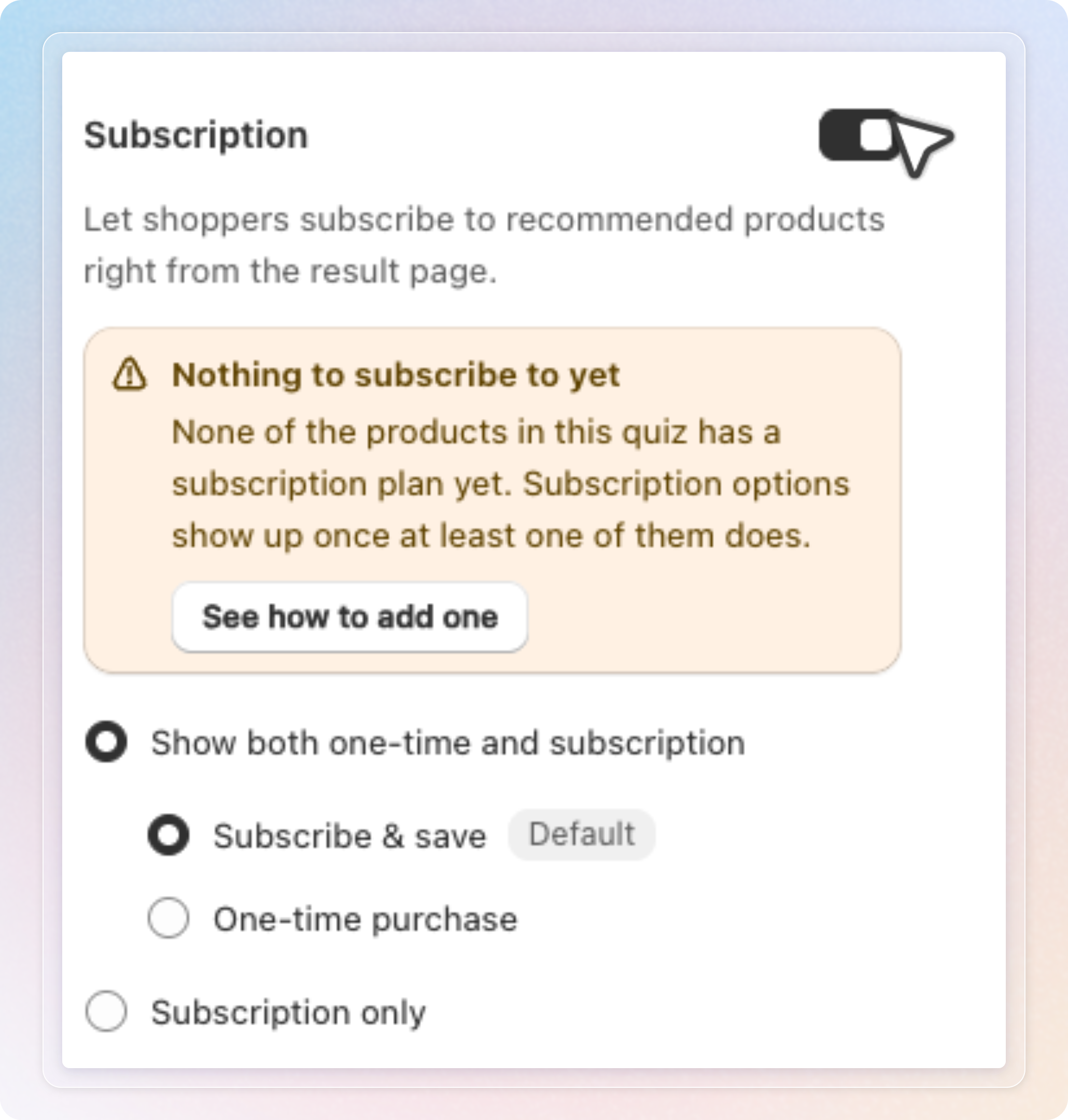
- In the Subscription section, turn on the toggle. It is off by default.
- Pick how shoppers buy. The next section explains both options.
- Click Save.
The editor preview shows the same badge and plans your shoppers will see.
Choose how shoppers buy
| Option | What shoppers get |
|---|---|
| Show both one-time and subscription | A choice between buying once and subscribing. You decide which is selected first. |
| Subscription only | The subscription alone. Buying once is hidden. |
Under Show both one-time and subscription, pick Subscribe & save or One-time purchase. The Default badge marks the one shoppers see selected first. Subscribe & save is the default on a new quiz.
See which products have a plan
When you add products to a result, the product picker marks products and variants that sell a plan. The badge reads 1 plan or 2 plans. Hover over it to see the plan names. The badge appears once Subscription is on.
Warnings you may see
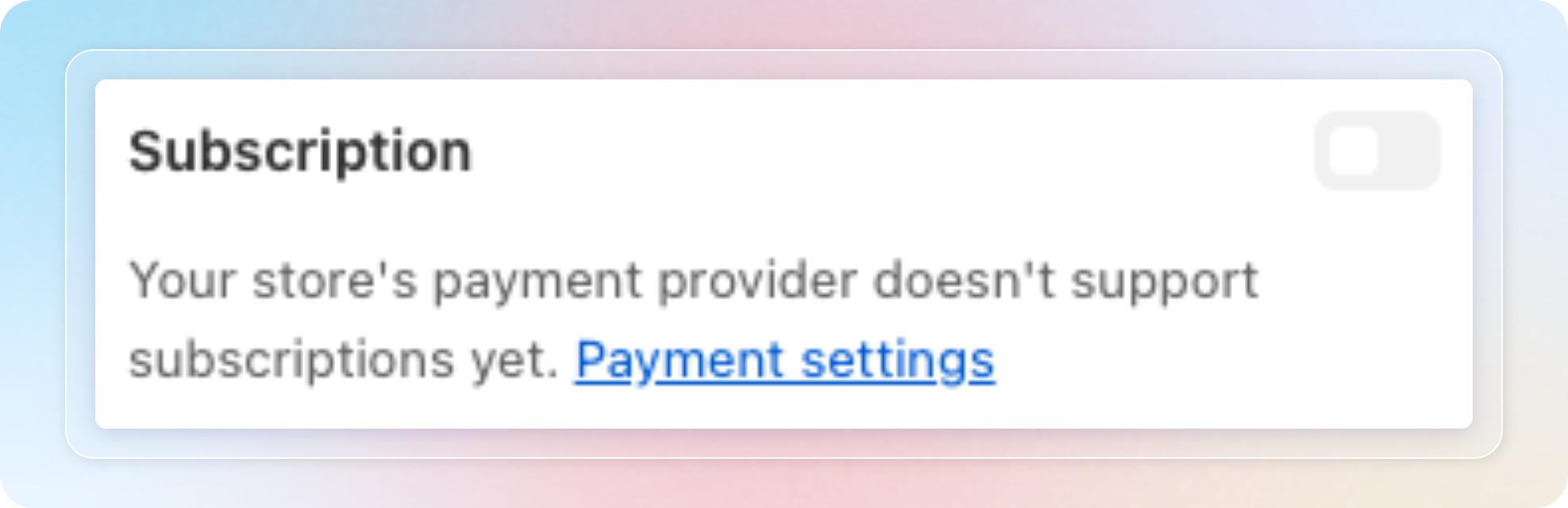
Toggle locked. When your payment provider does not support subscriptions, the toggle is greyed out. The section reads "Your store's payment provider doesn't support subscriptions yet" and links to Payment settings in Shopify. Fix the provider there, then come back. The editor rechecks when you return to the tab.
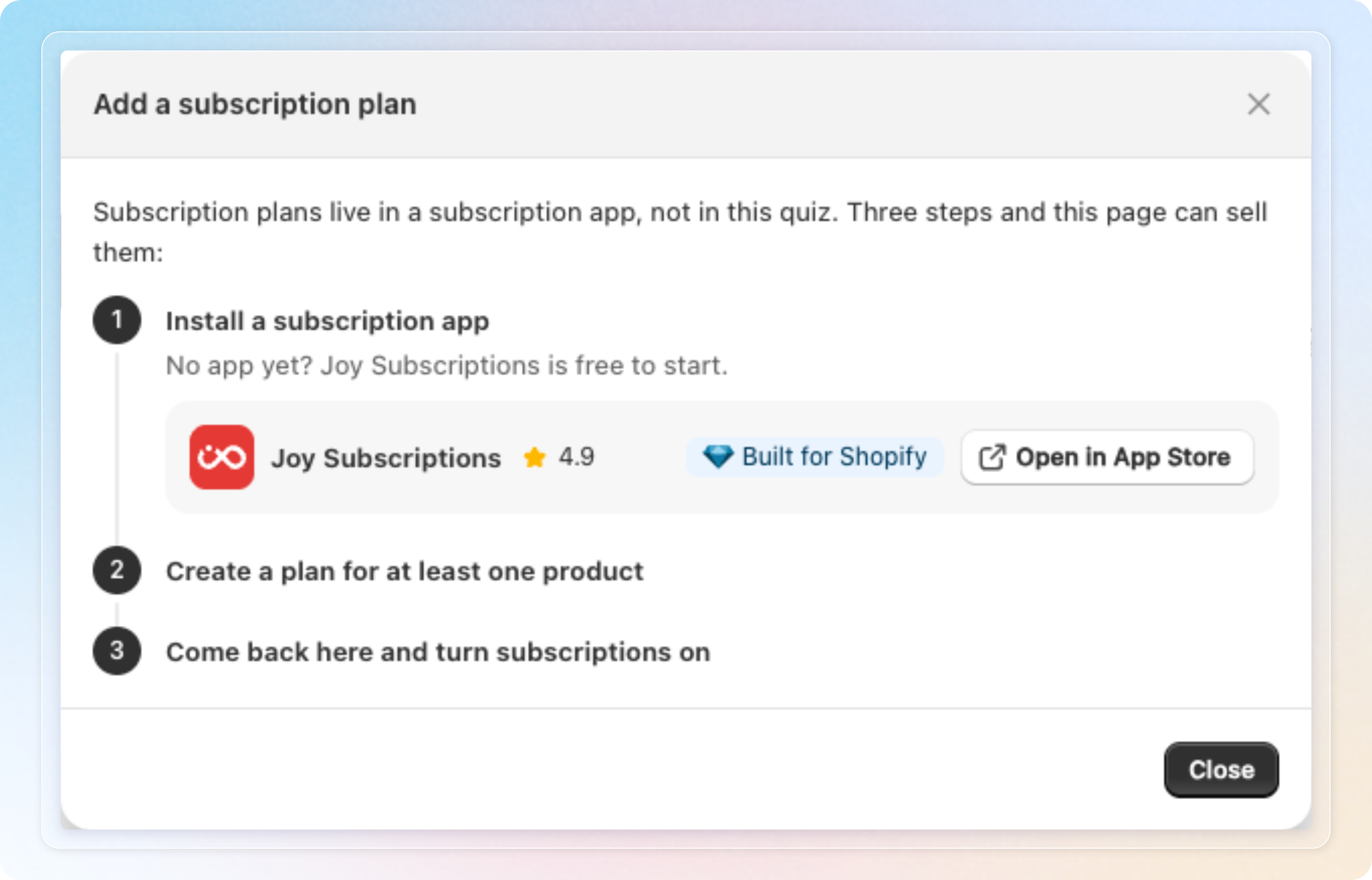
Nothing to subscribe to yet. This banner appears when no product in the quiz has a plan. Click See how to add one to open the Add a subscription plan guide. It lists three steps:
- Install a subscription app. The guide suggests Joy Subscriptions with an Open in App Store button.
- Create a plan for at least one product.
- Come back here and turn subscriptions on.
A result with no plan. Once one product in the quiz has a plan, Preview results flags any result whose products have none. A warning icon appears next to that path or scenario. Hover over it to read why. Per-answer mapping does not list results there, so it shows no icon.
What stops you saving
An Active quiz cannot promise a subscription it cannot sell. Saving is blocked when all three are true:
- The quiz status is Active.
- Subscription is on.
- A result has products, but none of them sells a plan.
A Failed to save banner at the top of the editor names the result. For example: "Default result" has no product with a subscription plan. Add one, or turn subscriptions off for this quiz. Click Continue editing to close the banner, then fix the result.
Three things to know:
- An Inactive quiz saves without this check.
- The check only starts once at least one product in the quiz has a plan. Before that, the quiz saves and the banner above reminds you.
- With Per-answer mapping, the check covers the fallback result and answers with products picked by hand. Answers mapped by tag or product type are not checked.
What shoppers see on your store
- A product with a plan shows a Subscription badge on its card.
- The add to cart button on that card opens the product popup. A Delivery frequency row lists each plan. Under Show both one-time and subscription, it also lists One-time purchase. Your default is selected first.
- The price follows the plan picked. When a plan costs less than buying once, the popup shows Save X%.
- Add all to cart follows your default. With Subscribe & save, it adds the first plan of each product. Products without a plan are added as a single purchase.
- Under Subscription only, products without a plan are hidden. With Per-answer mapping, the next ranked product moves up. A result left empty shows the fallback result instead. When that is empty too, shoppers see "We couldn't find a perfect match".
- A product sold only by subscription in Shopify is always added with its plan, even when Subscription is off.
Track subscription revenue
- In the SEA Survey sidebar, click Analytics.
- In the Basic analytics card, click Quiz analytics.
- Pick your quiz, then switch the view to Product.
The Total revenue from Quiz card adds a line, "Includes $X from subscriptions", when subscription orders came from the quiz. Orders placed before this feature was released are not included. If the Product view is locked for your store, click Contact us in its banner.
Tips
- Give every result at least one product with a plan before you set the quiz to Active. The save check then never gets in your way.
- After you create a plan in your subscription app, switch back to the quiz editor. It rereads your plans when the tab regains focus.
- Use Subscription only for refills and consumables. Keep Show both one-time and subscription for products shoppers may want to try first.
- Set a lower plan price in your subscription app. The Save X% label does the selling for you.