Recommend products with AI matching
AI matching reads each shopper's answers and your catalog, then picks the products that suit that shopper.
AI matching is in Beta and needs the Growth plan or higher. On a lower plan, you can view its settings, but you cannot edit, test, or turn it on.
When to use AI matching
The other methods need an entry per answer, per combination of answers, or per scenario. AI matching needs only fallback products, plus an optional instruction. It also covers new products the day you add them.
It suits stores with a large or changing catalog, where mapping products by hand takes too long. To compare all four methods, see Recommend products with Score mode.
Before you start
- Your quiz has at least one choice question. Without one, AI matching shows a warning and cannot save.
- Your quiz has been saved at least once. Tests run against a saved quiz.
- Your store has AI tokens. Each test run costs tokens, like a shopper does. See How AI matching uses tokens.
Turn on AI matching
- Open your quiz, then click the Result logic tab.
- Click the method button in the top bar. It shows the method your quiz uses now.
- Choose AI matching.
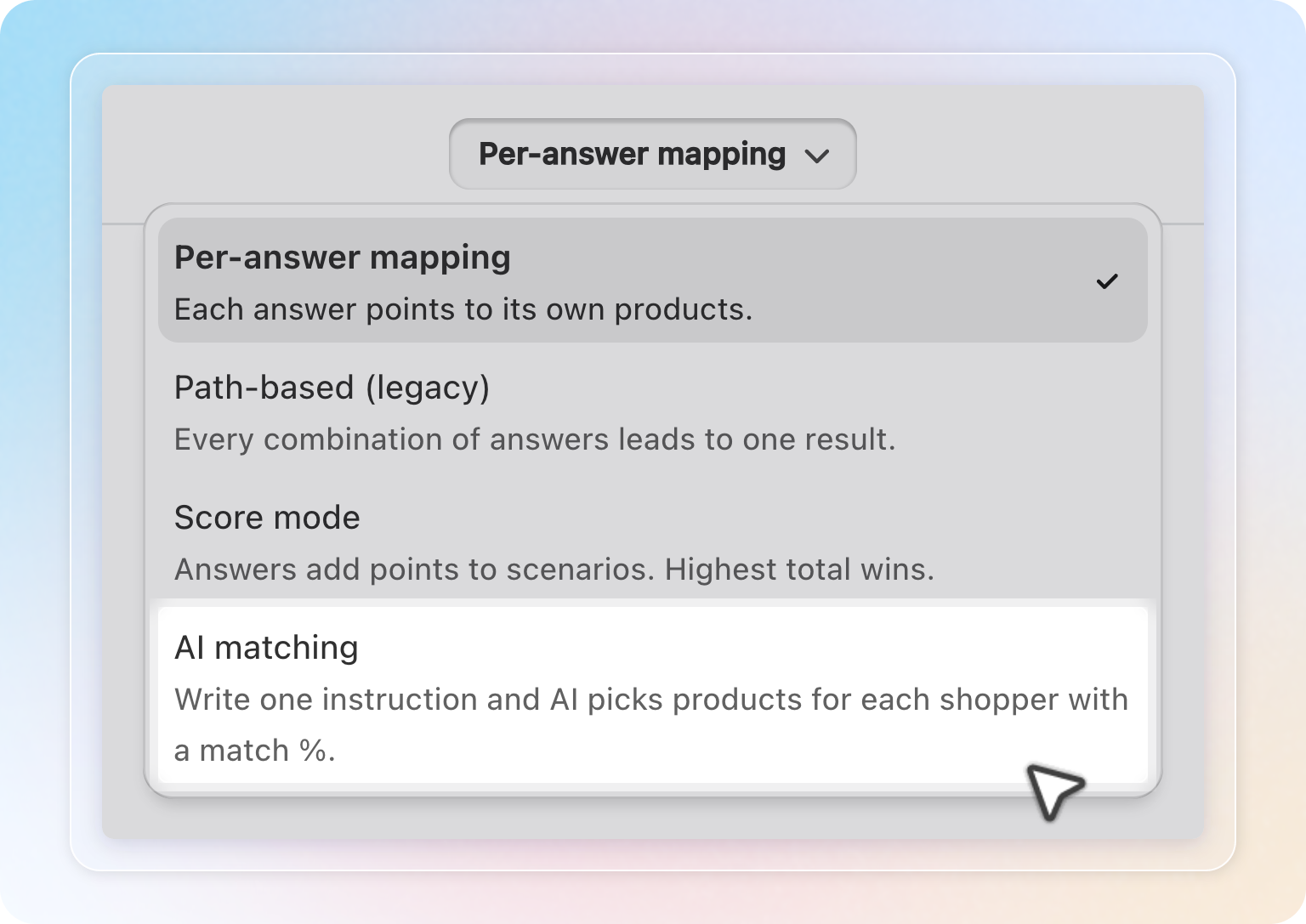
Switching is lossless. Your setup for the other methods stays saved, so you can switch back later.
The tab now has two sides. Your settings sit on the left. The Test as a shopper and Saved rules tabs sit on the right.
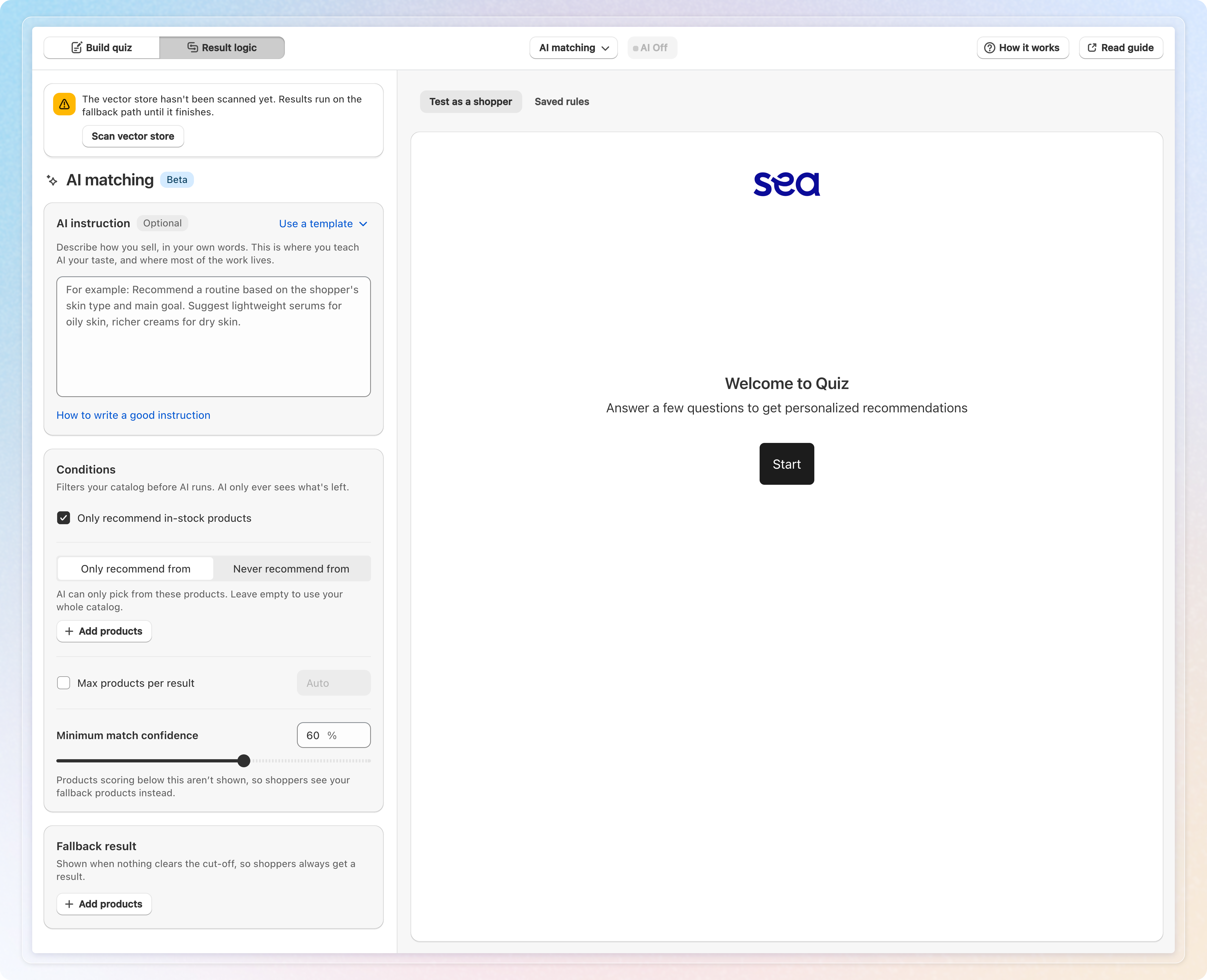
For a short tour of the method, click How it works in the top bar.
Scan your catalog
AI matching searches your products through an index called the vector store. The app builds it from your catalog.
- If the banner reads "The vector store hasn't been scanned yet", click Scan vector store.
- While it runs, the banner shows "Preparing the vector store" with a product count. Click Refresh to update the count.
- The banner disappears when the scan is done.
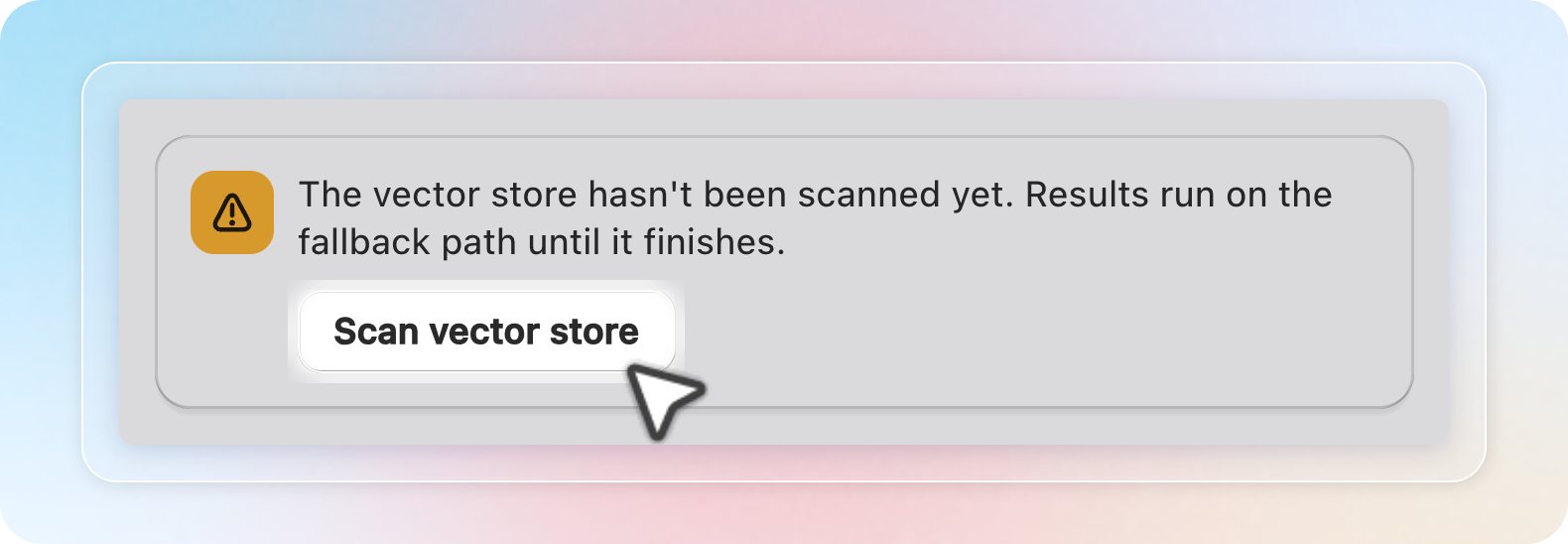
If the banner reads "Vector store scan failed", click Scan vector store to try again.
Until the scan finishes, AI picks from a small set of your newest products. The banner calls this the fallback path. It does not mean your fallback products. Wait for the scan before you judge results. After that, the app keeps the index up to date when you add, edit, or delete products.
Write the AI instruction
The AI instruction box is optional, but it shapes most of your results. Describe how you sell, the way you would brief a new salesperson. Say what suits whom, and what to avoid.
To start from an example, click Use a template. Pick Skincare quiz, Vitamin & supplement quiz, Clothing fit quiz, Coffee taste quiz, Pet food quiz, or Blank.
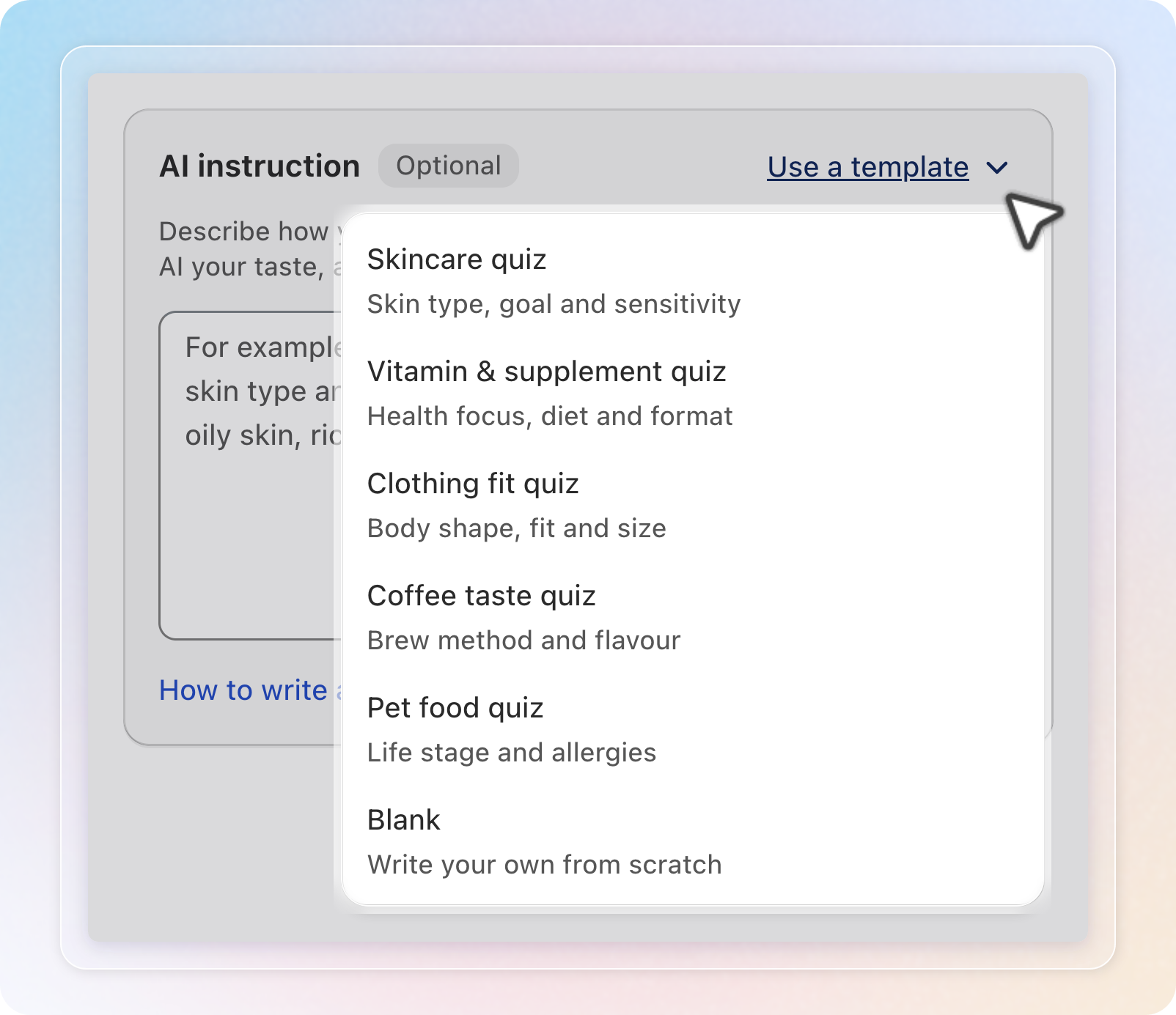
If the box holds text you wrote yourself, the app asks first. Click Replace to overwrite it. You cannot undo this. An empty box, or a template you have not edited, changes without asking.
Without an instruction, AI ranks products on the shopper's answers alone.
Set conditions
Conditions filter your catalog before AI runs. AI only sees the products that are left.
- Only recommend in-stock products leaves out products that are out of stock. A new setup has it ticked.
- Only recommend from limits AI to the products or collections you add. Leave it empty to use your whole catalog.
- Never recommend from keeps products or collections out, even when they match.
- Max products per result caps how many products a shopper sees. Unticked, it reads Auto and shows every product above your cutoff. Tick it to set a number from 1 to 20. It starts at 4.
- Minimum match confidence is your cutoff, from 0% to 100%. A new setup starts at 60%. AI leaves out products below it.
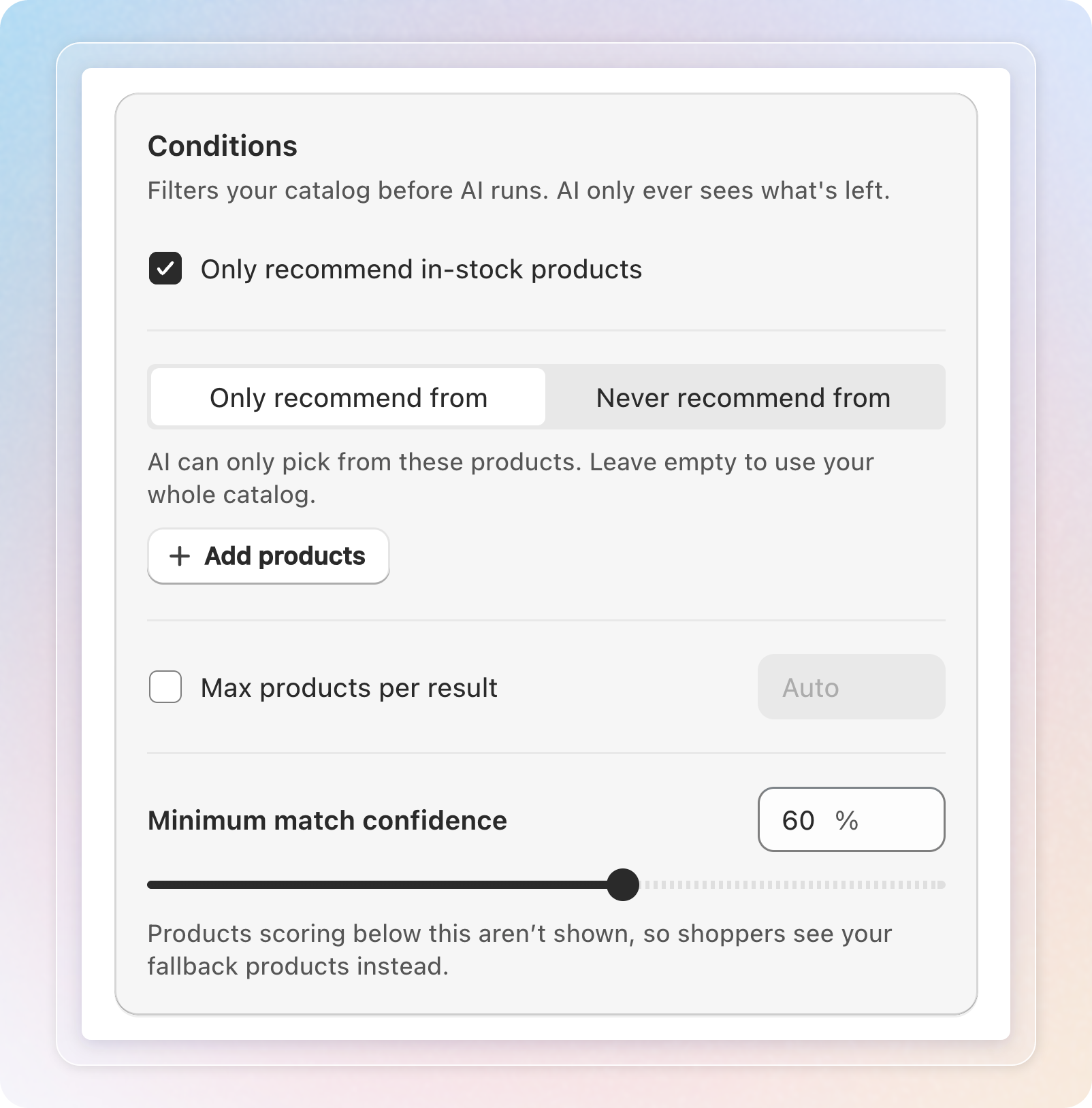
Only recommend from and Never recommend from share one switch, but both lists apply at the same time. Each list takes up to 10 collections.
Add fallback products
The Fallback result is what a shopper gets when no product clears your cutoff. It also shows while AI matching is off, or when your tokens run out.
- Under Fallback result, click Add products.
- Pick at least one product. You cannot save without one.
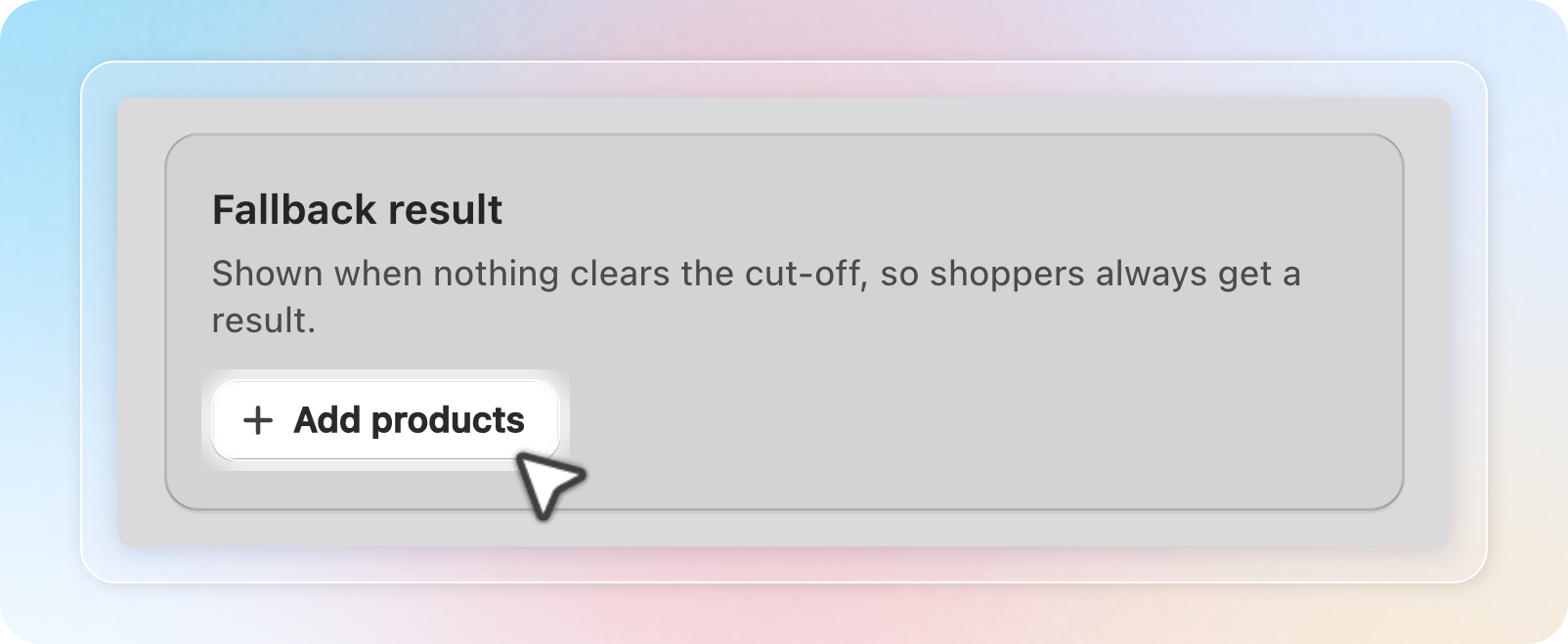
If you delete a fallback product from your catalog, a red banner names it. Replace it before you save.
Test as a shopper
Test before you go live. A test uses your current settings, even ones you have not saved yet.
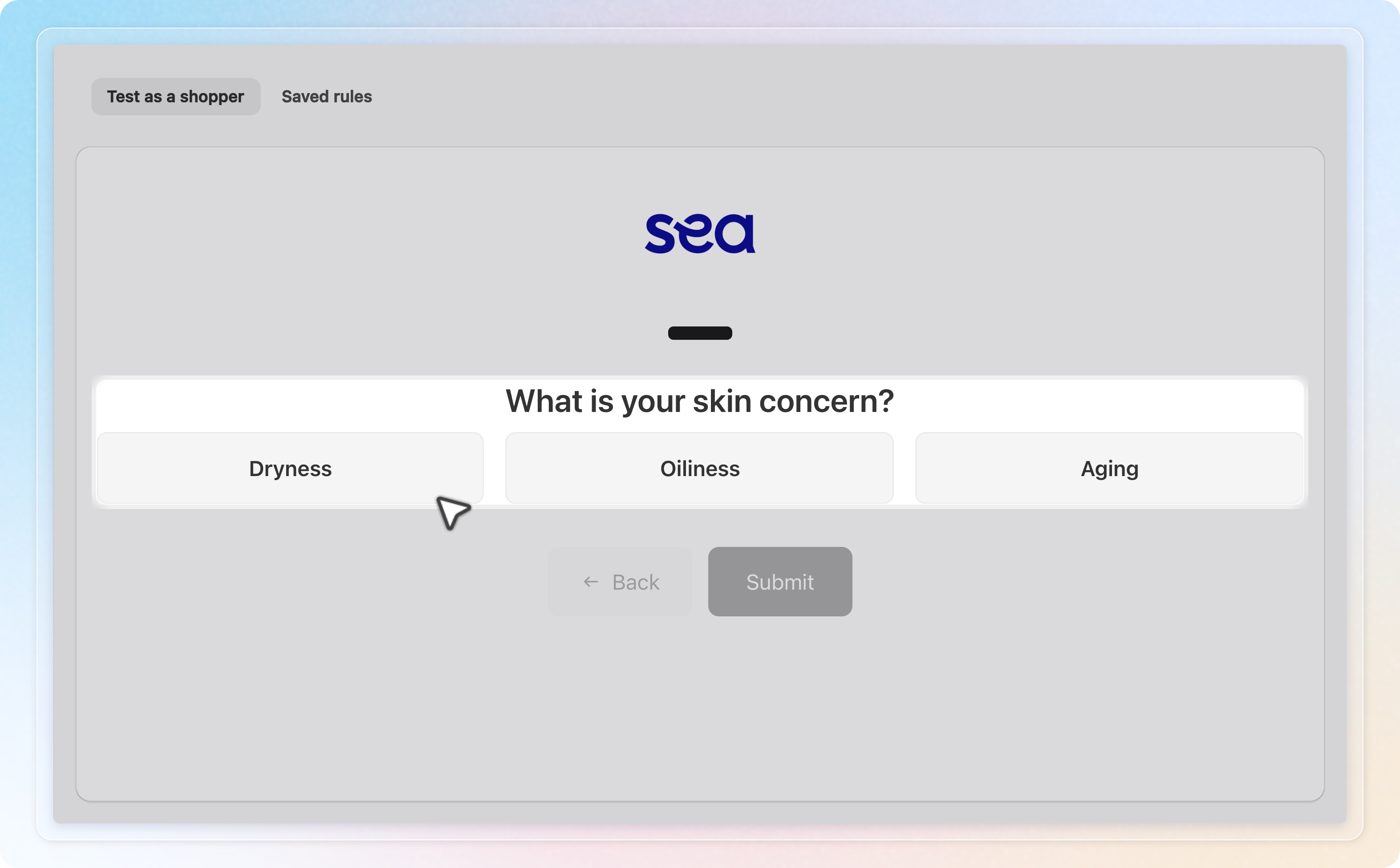
- Click the Test as a shopper tab.
- Answer the quiz the way a shopper would.
- After the last answer, see the products AI picked. Each one shows its match %.
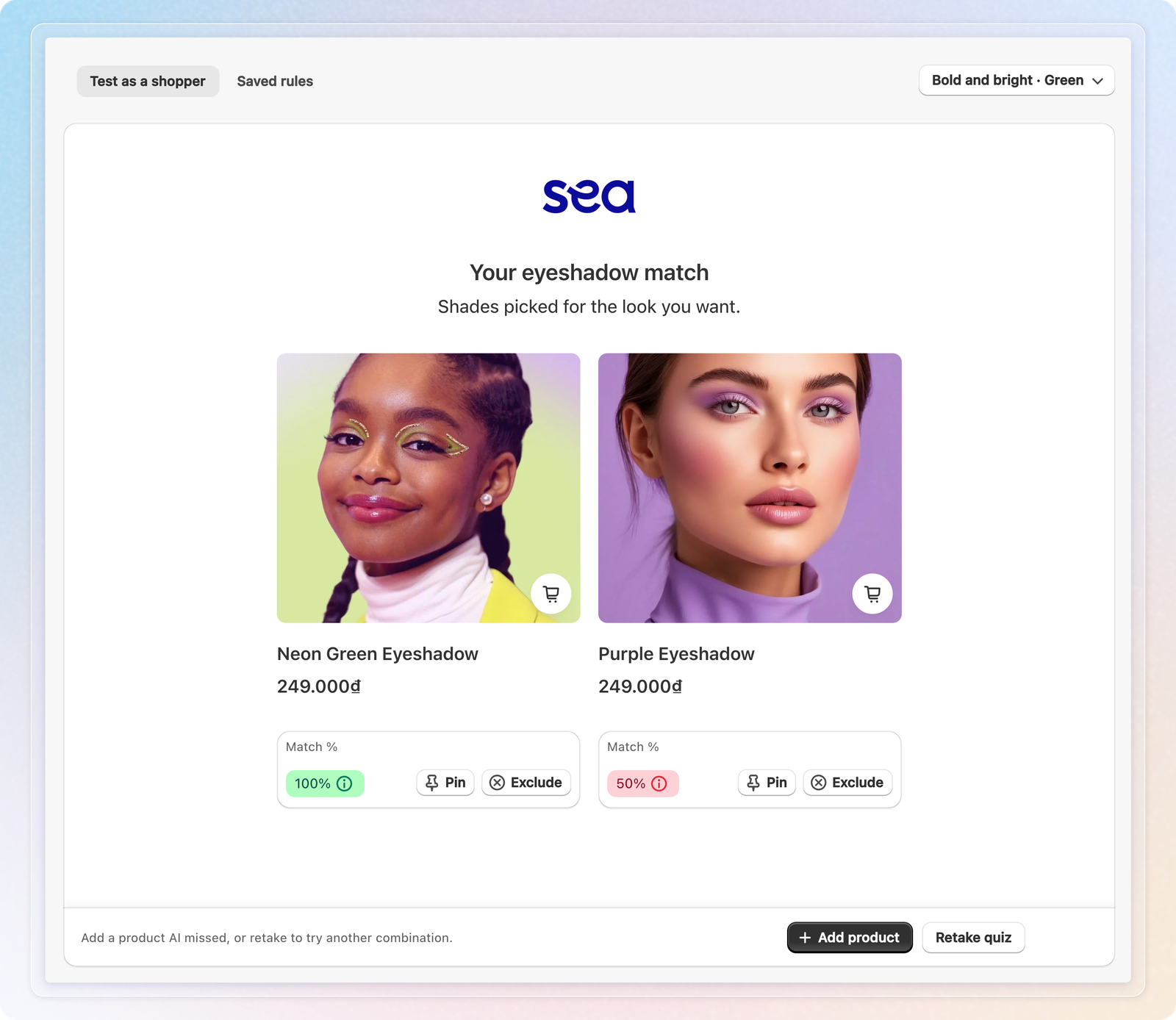
Hover over a product's match % to see Why this product? It gives the reason AI chose it. It also shows how many questions AI scored, how well the product fits your instruction, and the match confidence.
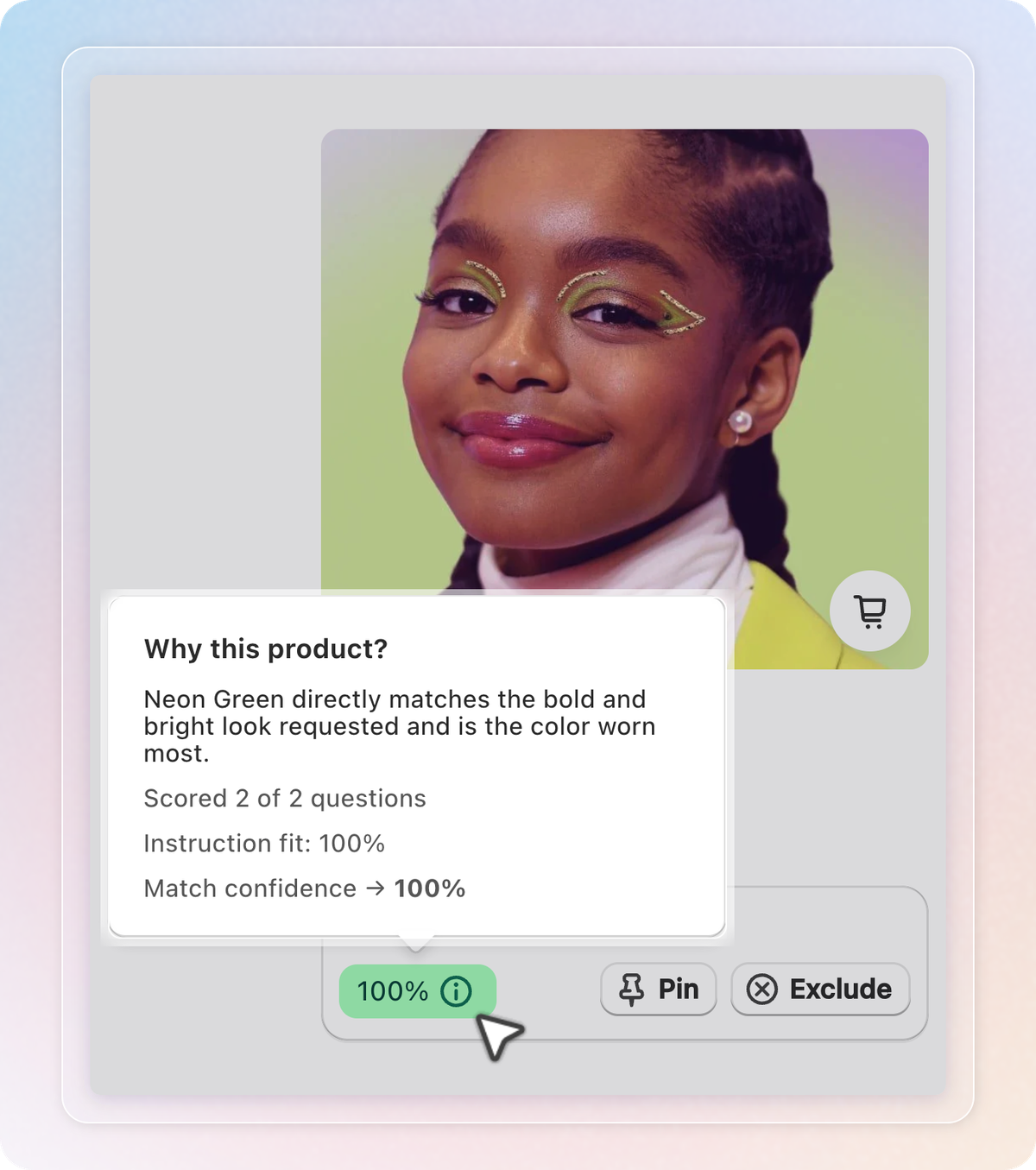
If no product clears your cutoff, the result shows your fallback products instead.
To try other answers without retaking the quiz:
- Click the answers button next to the tabs. It shows the answers of the current run, or Choose answers.
- Under Try another combination, pick an answer for each question.
- Click Run again.
Above Run again, a summary line shows how your catalog narrowed down. It counts the products in your catalog, the shortlist AI scored, your cutoff, and the products shown. It appears only after a run where AI picked products.
To start over from the first question, click Retake quiz.
Correct a result
You correct results right on the test result. Pin keeps a product in the result. Exclude takes it out. Each one asks how far the change should reach. Nothing changes until you click the button at the bottom.
For Pin:
- Just this combination is the default. Click Save rule to save a rule for these exact answers.
- AI undervalues this product adds a sentence to your instruction. It reaches every shopper who gives the answers you pick.
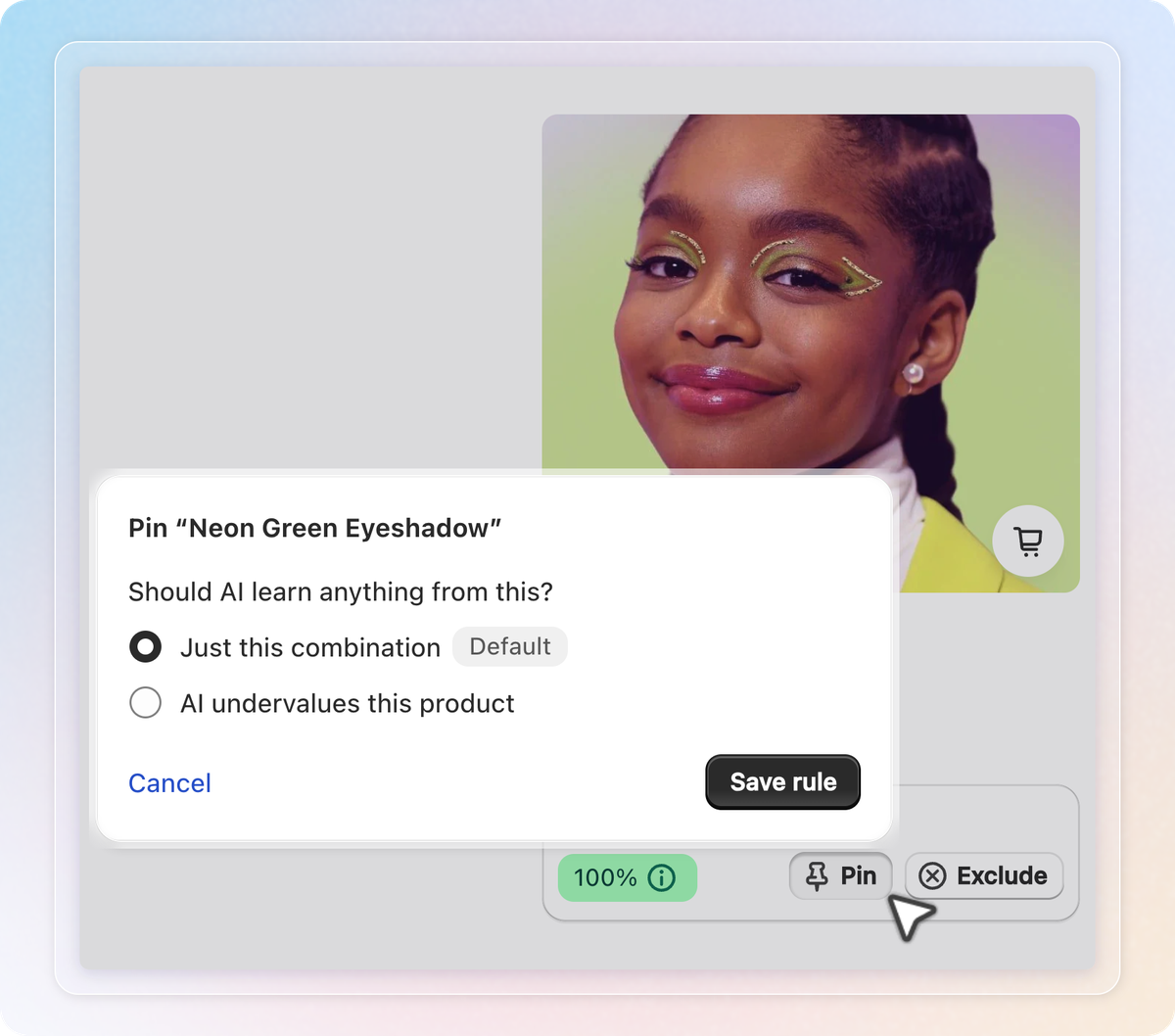
For Exclude, first pick a reason in the Why? list. Then choose:
- Only this combination, then Save rule, changes these exact answers only.
- Every similar combination is recommended. It adds a sentence to your instruction.
- Never for anyone, then Add to Never list, puts the product on your Never recommend from list.
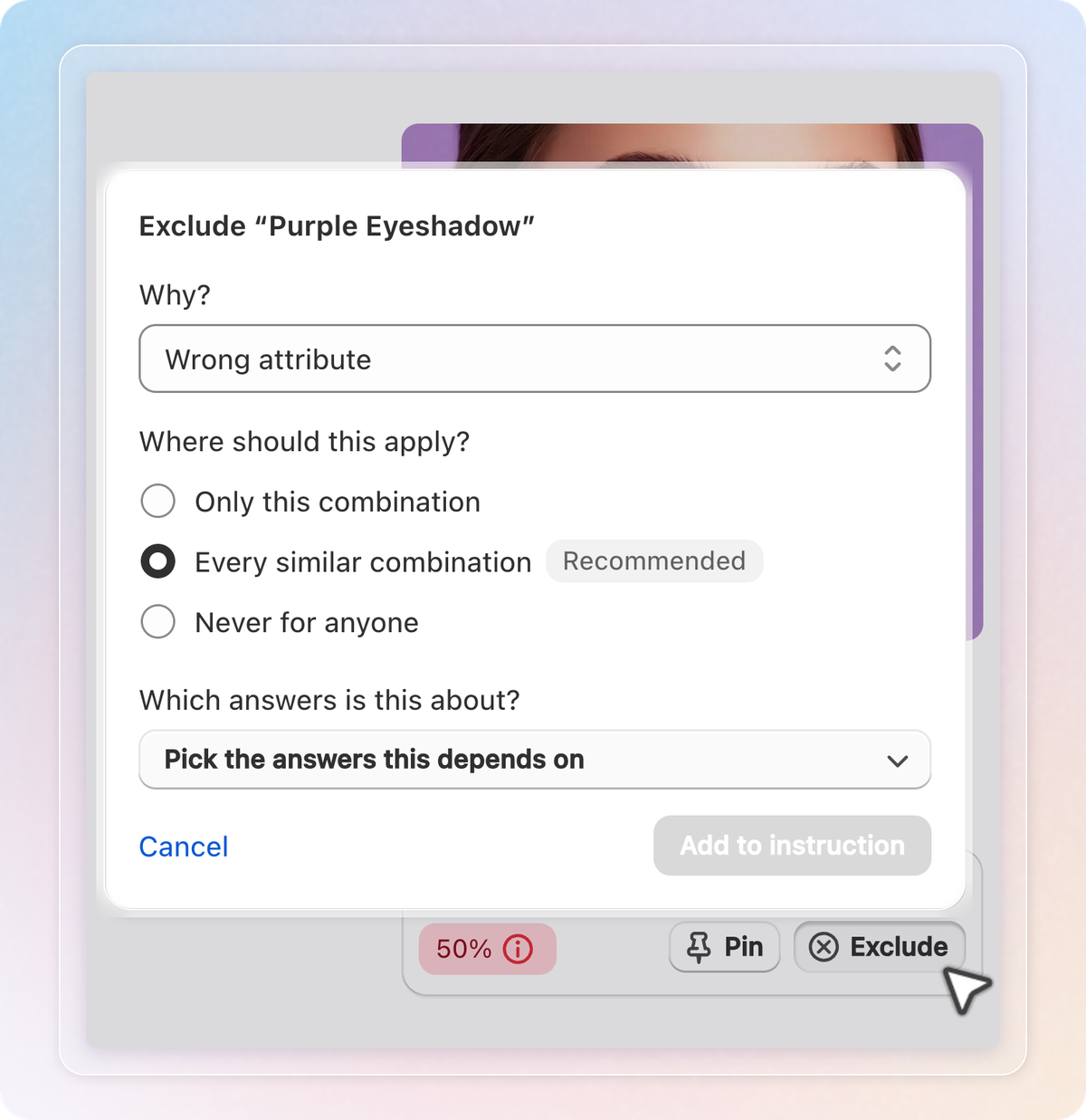
When a choice adds a sentence, pick the answers it depends on. Edit the suggested sentence if you like, then click Add to instruction.
If these answers already have a rule, Save rule reads Update rule instead.
To add a product AI missed, click Add product. It joins the rule for these answers.
Rules save the moment you make them. Changes to your instruction and to the Never recommend from list save when you click Save.
Manage saved rules
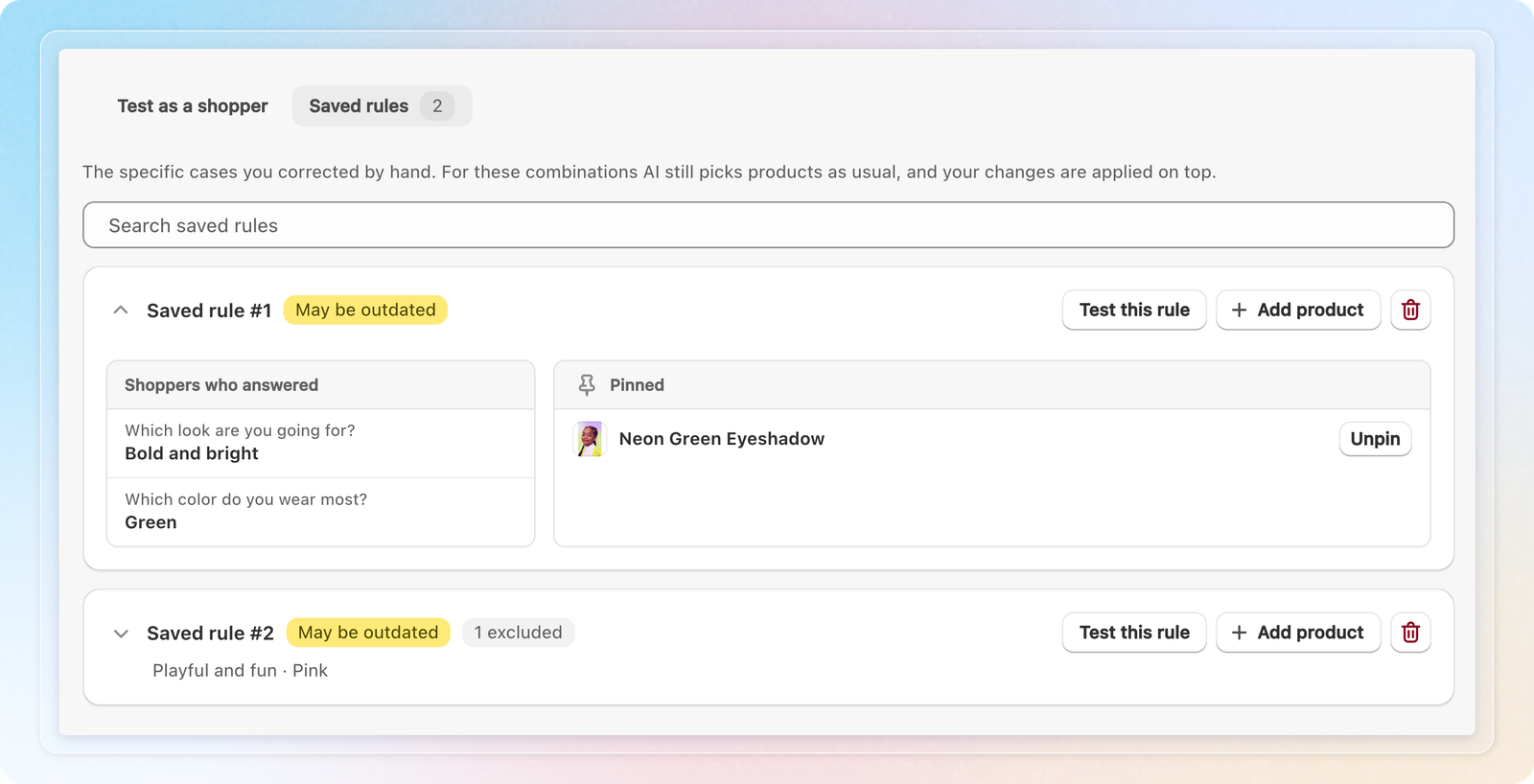
The Saved rules tab lists every answer combination you corrected. For these answers, AI still picks products as usual, and your changes apply on top.
- Find a rule with Search saved rules. Search looks at the answers a rule covers, not product names.
- Click Test this rule to run its answers again in Test as a shopper.
- To remove a rule, click its trash icon, then click Delete rule. Shoppers with those answers go back to AI's own picks. You cannot undo this.
A rule gets a label when it needs a look:
- Product deleted means a product the rule pins or adds is no longer in your catalog.
- Out of stock means a product the rule pins or adds is out of stock. It shows only when you tick Only recommend in-stock products.
- May be outdated means you changed your instruction after you saved the rule.
Save and go live
With AI matching, clicking Save is what reaches shoppers. So the app blocks the save until your setup is complete. A Finish setting up AI matching list then shows what is missing:
- At least one choice question
- An instruction for AI, marked Optional, which never blocks the save
- At least one fallback product
- Test the quiz once as a shopper
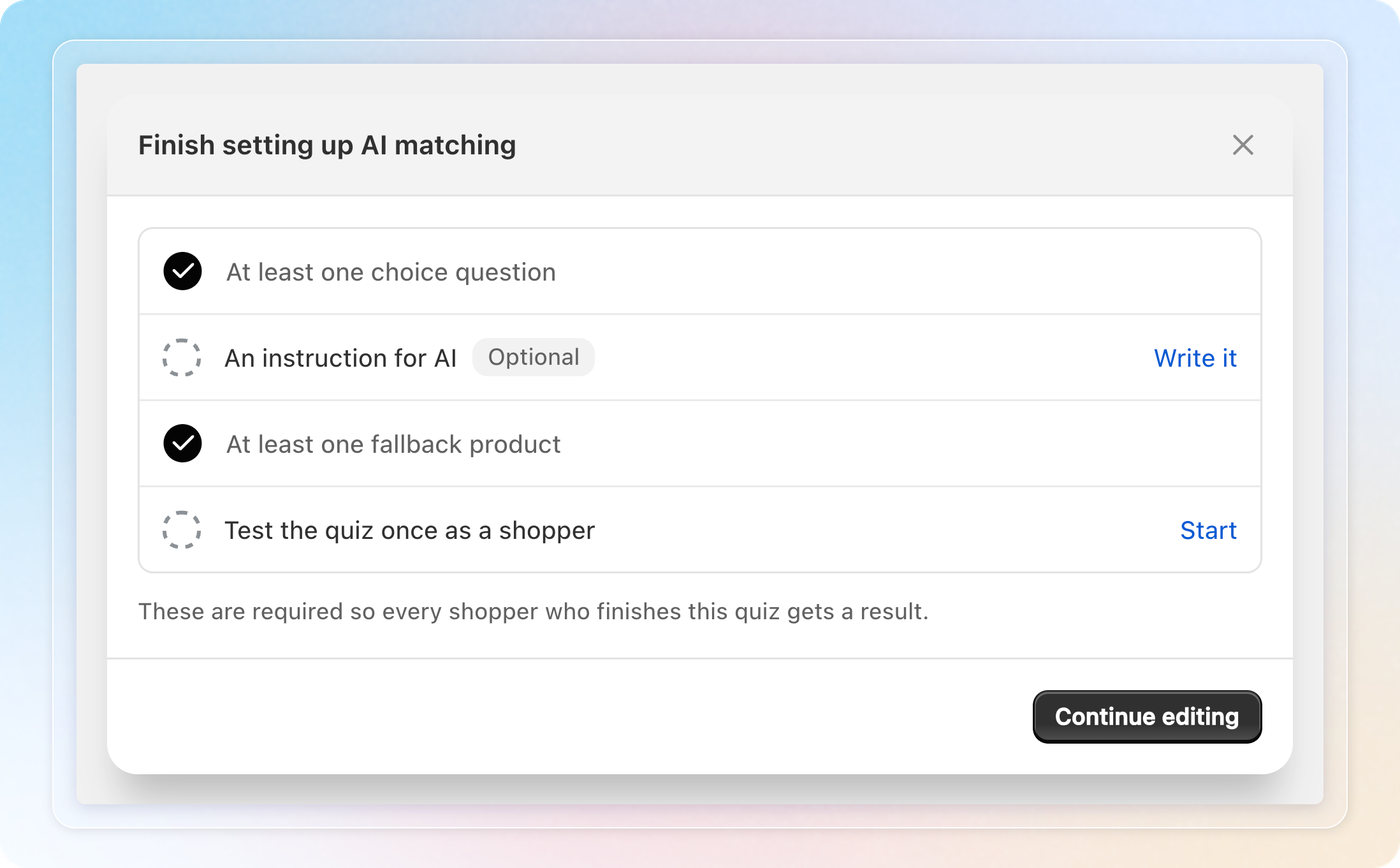
If you delete a fallback product from your catalog, the list also asks you to replace it. Each missing item has a button that takes you to the place to fix it.
Next to the method button, a toggle reads AI Off. While it is off, shoppers who finish the quiz get your fallback products.

- Click AI Off to switch it to AI Live.
- Click Save.
The toggle unlocks once you have a fallback product and one test where AI picked products. A test that only returned fallback products does not count. Your quiz must also be Active to reach shoppers.
How AI matching uses tokens
- A shopper costs 10 tokens when AI makes a new match. A shopper whose answers AI matched in the last 7 days reuses that result for free.
- Your own test runs cost 10 tokens each when AI makes a match. While you have tokens, a test always runs fresh, even for answers you tested before.
- AI matching and AI Analytics share the same tokens.
The bottom of the settings shows your balance under Available for AI matching. Below it, Enough for shows about how many shoppers that covers. Hover over that number to see the cost per shopper. If your store had quiz responses in the last 30 days, it also shows that count. It then estimates the tokens a month at that pace.
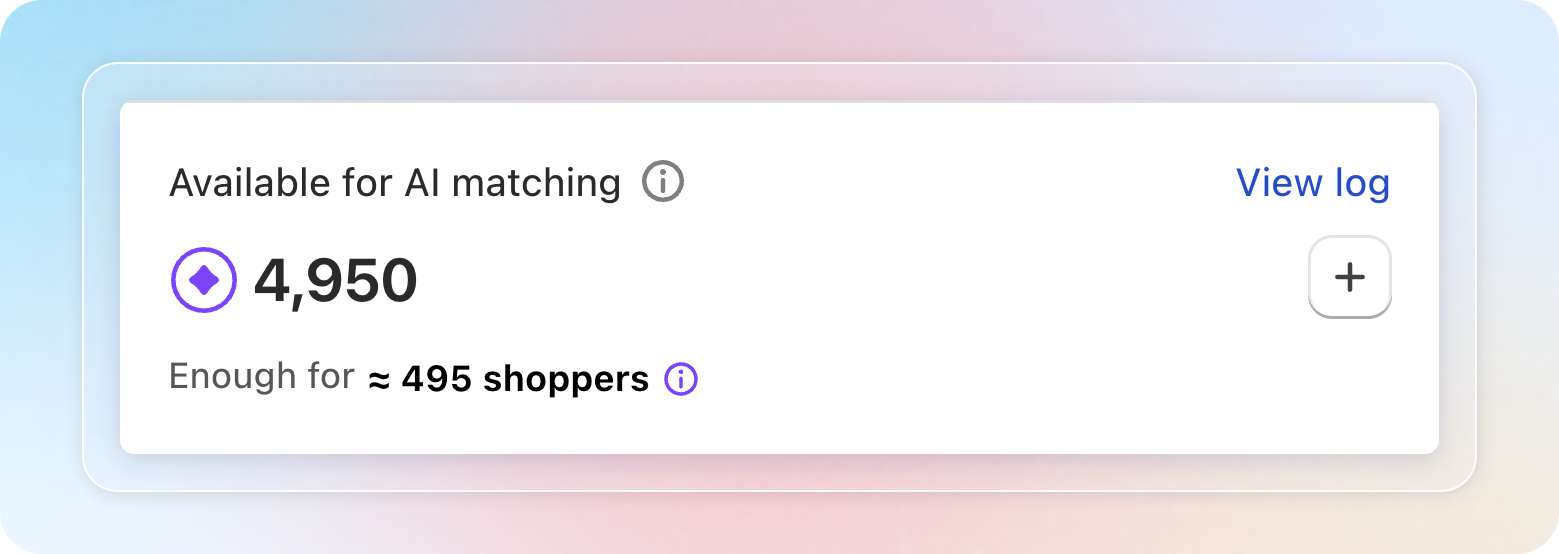
View log opens your token usage. To add tokens, click the + button next to your balance, or Buy more in a low token message.
When you have used 90% of the tokens for the period, a message appears at the bottom of the settings. A banner also shows on Home and your quiz list while any quiz is on AI Live. If you run out:
- New answer combinations get your fallback products.
- Answers AI has already matched keep their result.
- The quiz list marks the quiz AI matching paused.
Saving changed settings clears the saved results of the quiz. The app keeps only the combinations you tested on those exact settings. Other shoppers get a new AI match, which costs tokens again. If you save while you are out of tokens, every shopper gets your fallback products until you have tokens again.
Product edits also clear saved results. The app waits until your edits have been quiet for 1 hour, or 24 hours at most. It does not clear them while you are out of tokens.
What shoppers see
When shoppers submit the quiz, they see a short loading screen: "Matching products to your answers…". After 4 seconds, a second message tells them their picks are almost ready. Only quizzes on AI matching show this screen.
Shoppers then see the products AI picked. They never see the match %, the Pin button, or the Exclude button.
If your quiz sells subscription plans with Subscription only, your store hides products without a plan. In Test as a shopper, those products carry the label "Hidden on your store: no subscription plan".
Tips
- Name attributes, not products. "Lightweight gels for oily skin" keeps working when your catalog changes.
- Test several answer combinations before you go live, not only one.
- Use Never recommend from for products that should never show, like gift cards or samples.
- Keep saved rules rare. Many rules usually mean your instruction is not saying what you mean yet.
- Raise the cutoff if results feel loose. Lower it if shoppers often get your fallback products.