Notification Recipient Email
By default, SEA Survey sends response limit notifications to the store owner's email. If the person managing surveys is different from the store owner, you can change the recipient to any verified email address.
Where to find it
Go to Settings → Emails → Notification recipient email.
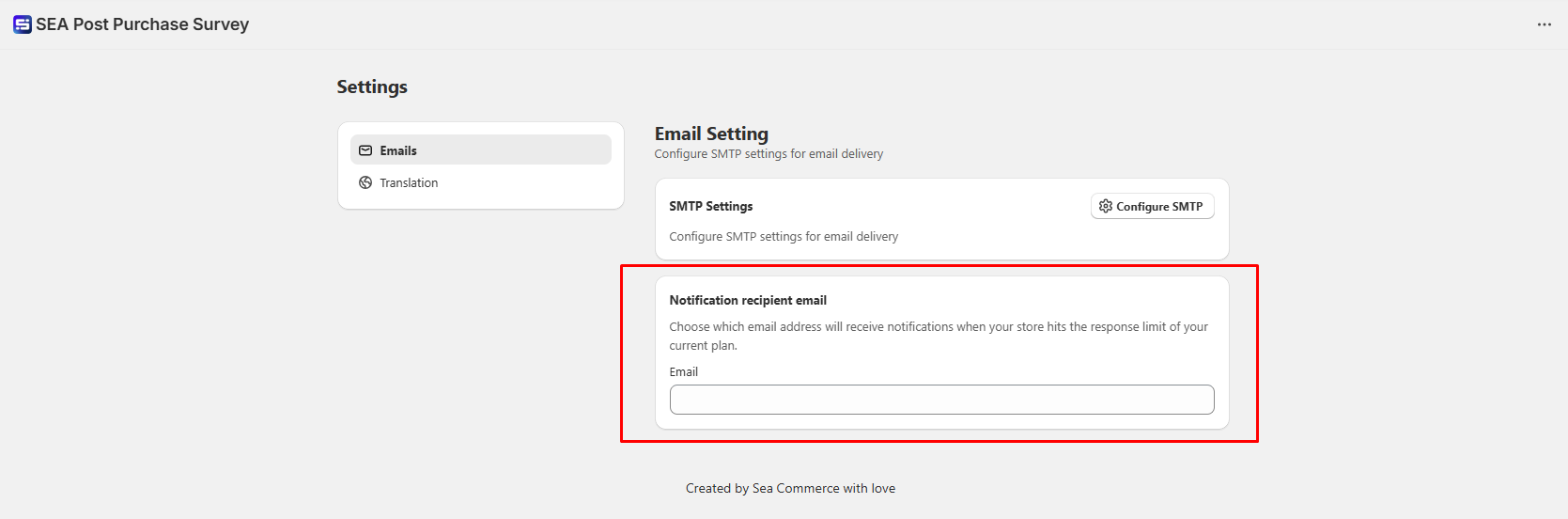
How to change the recipient
Step 1 — Enter the new email address
Type the email address you want to receive limit notifications.
Step 2 — Verify the email
Click Verify. A verification email will be sent to that address.
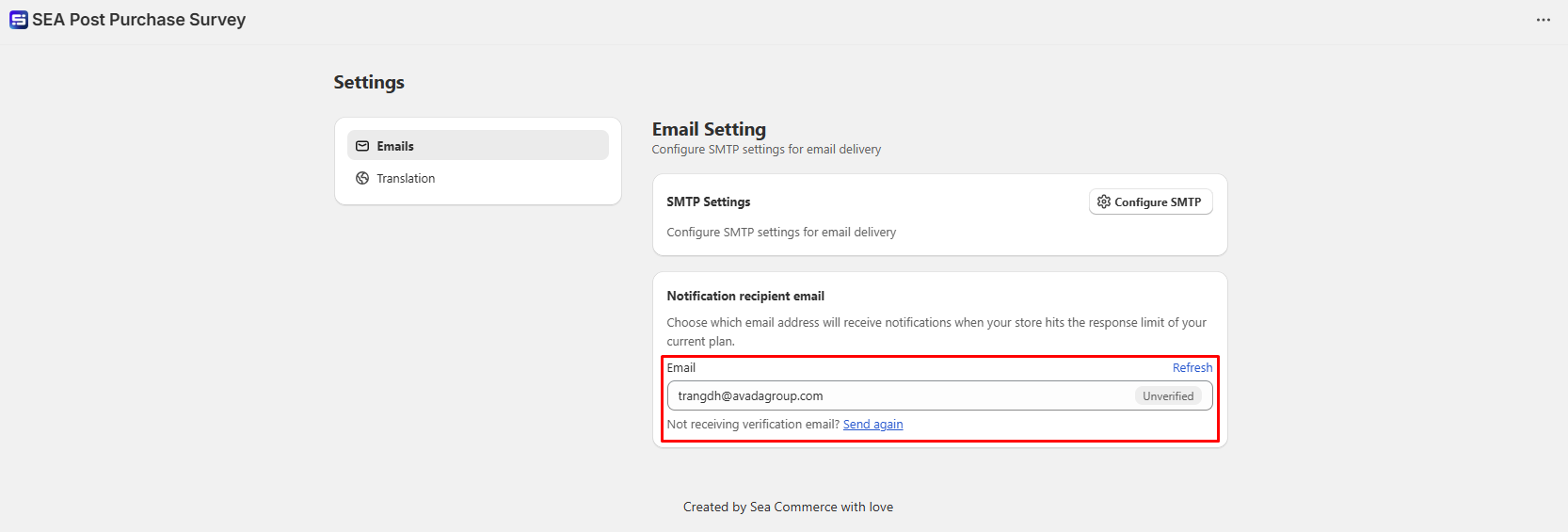
Step 3 — Open the verification email and confirm
Click the confirmation link in the email. Once verified, the address becomes active and will receive all future limit notifications.
Important: The new email address will not receive notifications until it has been verified. If you skip this step, notifications continue going to the store owner's email.1
What triggers this notification?
SEA Survey sends a notification when your store reaches the response limit on your current plan. The notification lets you upgrade your plan before survey collection is interrupted.