Shuffle answer options
Customers tend to favor answers near the top of the list — this is called position bias. The Shuffle answers feature randomizes the order of answer options each time your survey is displayed, so every option gets a fair chance of being seen first.
Shuffle answers is available on all plans for Single Choice and Multiple Choice questions
Steps
Step 1: Open Your Survey
From the SEA Survey dashboard, click on the survey you want to edit. This opens the survey editor.
Step 2: Select a Single Choice or Multiple Choice Question
In the survey editor, click on the Single Choice or Multiple Choice question in the left panel. The question settings will appear on the right side.
Step 3: Find the Shuffle Answers Checkbox
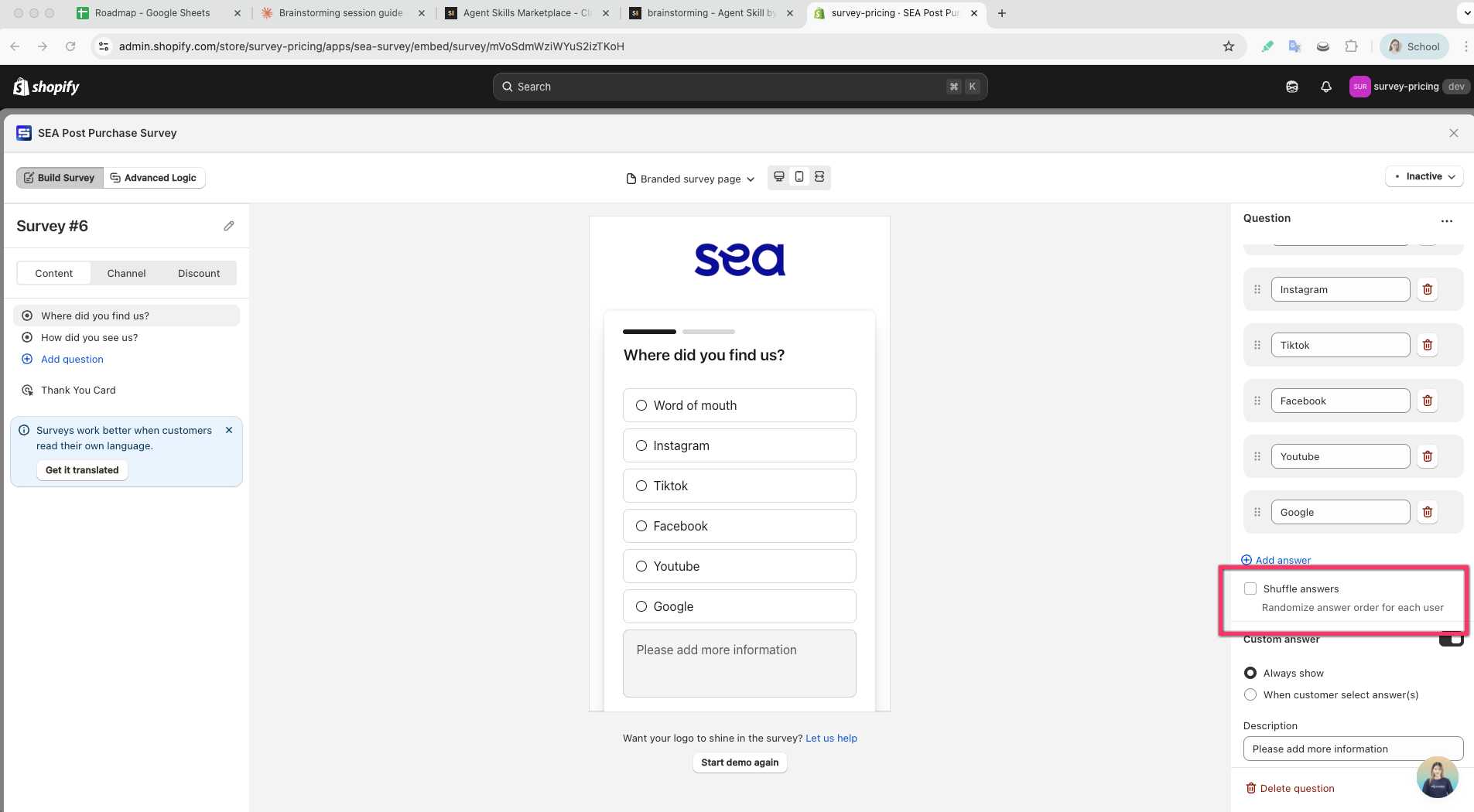
Scroll down to the Answers section. Below the answer list, you will see a checkbox labeled Shuffle answers with the hint text “Randomize answer order for each user.”
Step 4: Enable or Disable Shuffle
- Checked (default for new questions): Answer options will appear in a randomized order each time the survey is shown to a customer.
- Unchecked: Answer options will always appear in the exact order you defined.
When shuffle is enabled, the answer list in the editor switches from a drag-and-drop list to static blocks — since the order will be randomized anyway, drag-to-reorder is disabled.
Step 5: Save Your Survey
Click Save to apply your changes. The shuffle setting takes effect immediately for all new survey responses.
How It Works
| Detail | Description |
|---|---|
| Applies to | Single Choice and Multiple Choice questions only |
| Default state | Enabled (checked) for all newly created Single Choice and Multiple Choice questions |
| Randomization | Answer order is shuffled each time the survey is displayed to a customer |
| Availability | All plans, including free-forever stores |
| Editor behavior | When enabled, answers show as static blocks instead of drag-and-drop items |
| Analytics | Response data is unaffected — analytics group by answer text, not by position |
Tips
- Shuffle is enabled by default when you create a new Single Choice or Multiple Choice question. You only need to change it if you want a fixed order.
- If one of your answer options is “Other” or “None of the above,” consider disabling shuffle — customers typically expect these options at the bottom. You can use the Custom answer toggle instead to add an “Other” field that always appears last.
- Shuffle does not apply to other question types (NPS, Star Rating, Satisfaction, Short Answer, Date, Email Consent, Text & Image, Email, or Upload).
- Enabling shuffle is most impactful for questions with 4 or more answer options, where position bias is strongest.