Recommend products with Score mode
Score mode lets every answer add points to several scenarios at once. The scenario with the highest total wins, and its products show on your result page.
Score mode is available on all plans. It works with both single choice and multiple choice questions.
When to use Score mode
Quizzes have three recommendation methods. Pick the one that matches how you want results decided.
| Method | What you set up | What decides the result |
|---|---|---|
| Per-answer mapping | Products for each answer | One answer |
| Path-based (legacy) | Products for every combination of answers | The exact path |
| Score mode | One number per answer, per scenario | Every answer together |
Score mode suits personality style quizzes, like a skincare routine finder. Path-based can describe those too, but it needs every combination mapped by hand. A six question quiz with three answers each is 729 combinations.
Turn on Score mode
- Open your quiz, then click the Result logic tab.
- Click the method button in the top bar. It shows the method your quiz uses now.
- Choose Score mode.
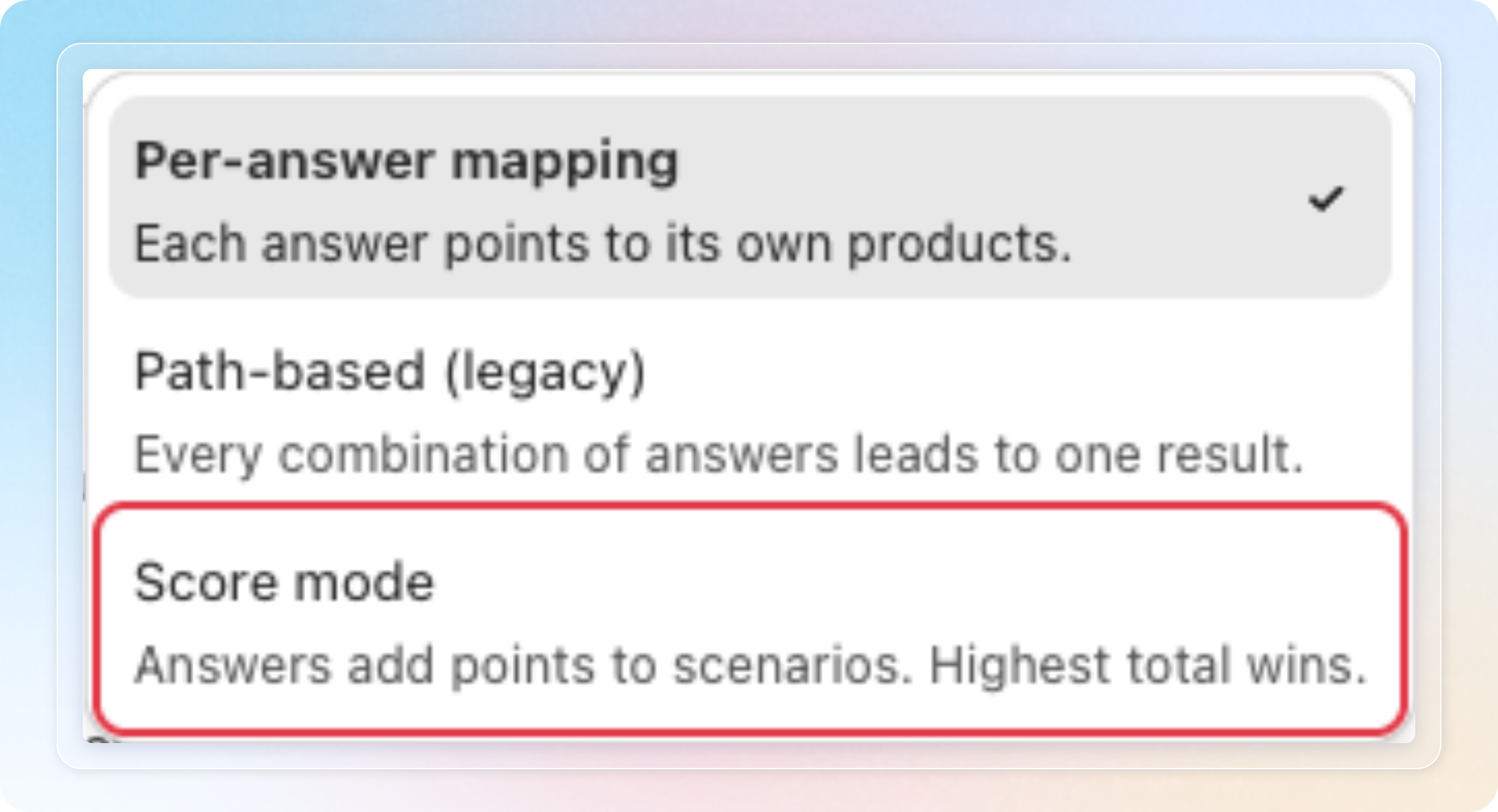
Switching is lossless. Your Per-answer mapping and Path-based setup stay saved, so you can switch back later. One exception: Path-based stays locked while your quiz has a multiple choice question.
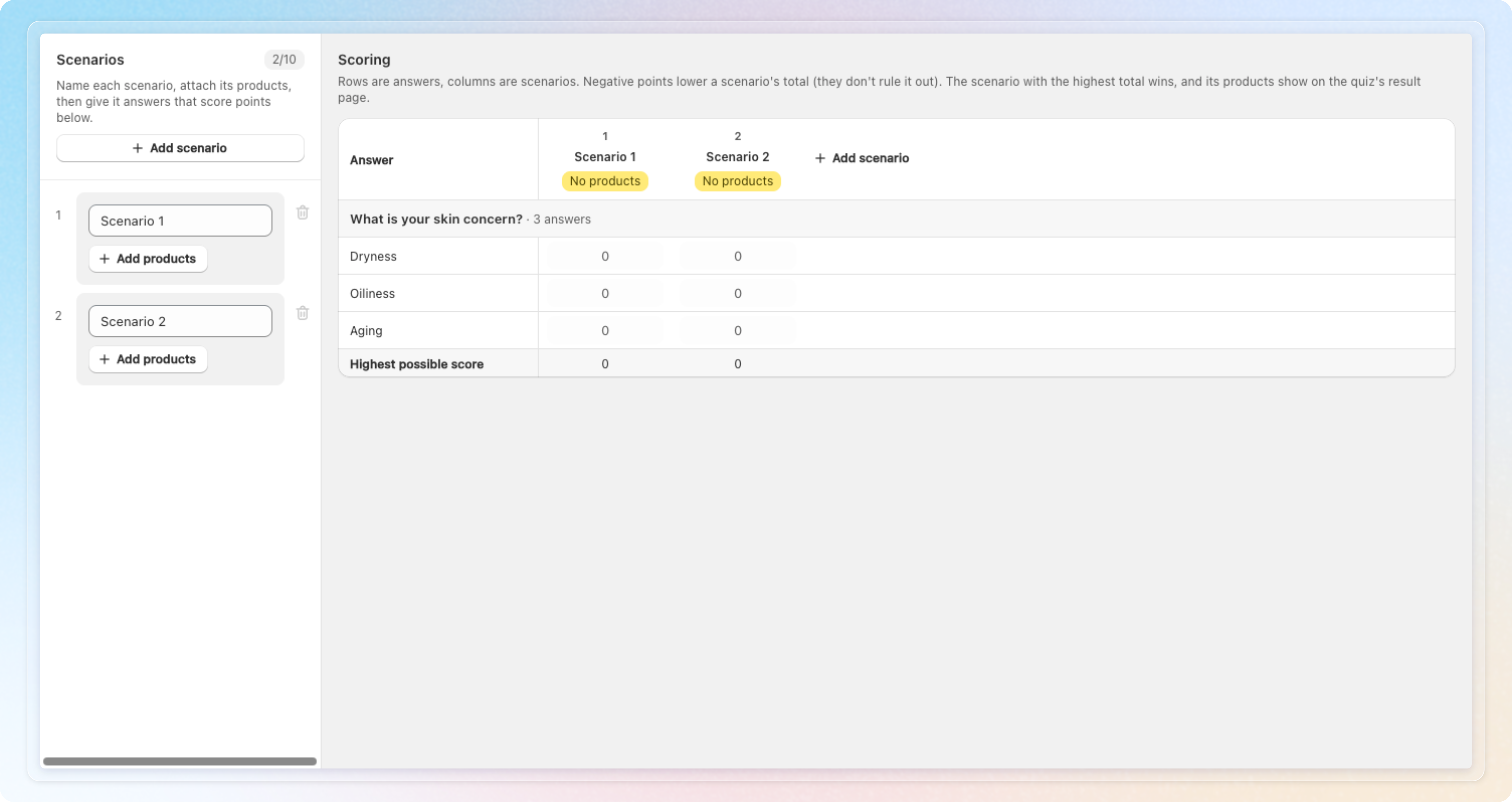
The first time a quiz moves to Score mode, the app adds two scenarios. They are named Scenario 1 and Scenario 2, and have no products yet.
The How Score mode works explainer opens by itself the first time your store uses Score mode. It opens once per store, not once per quiz.
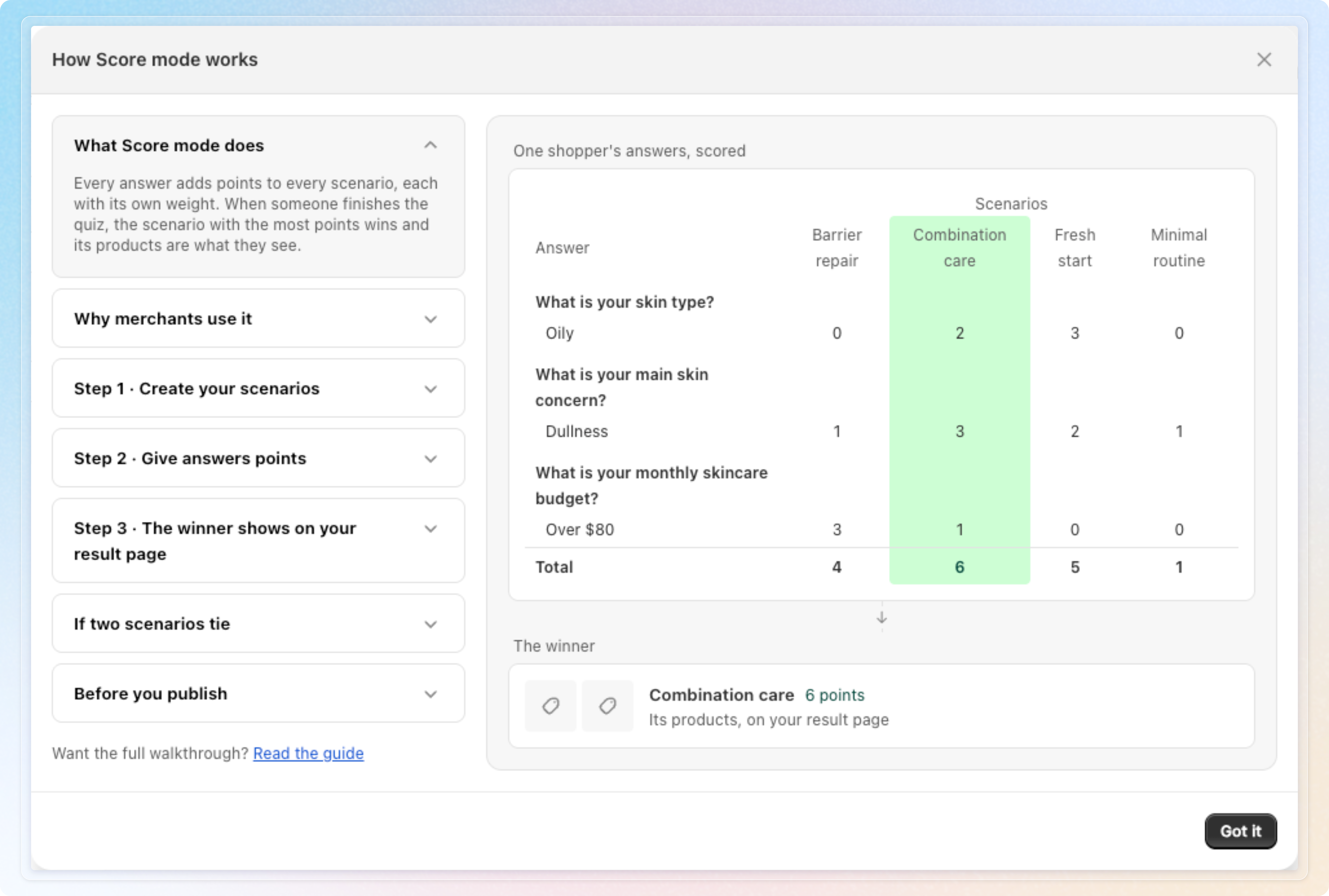
Click Got it to close it. Reopen it later with How it works in the top bar.
Create your scenarios
A scenario is one set of products you might recommend, such as "Barrier repair" or "Fresh start".
- In the Scenarios panel, type a name in Scenario name.
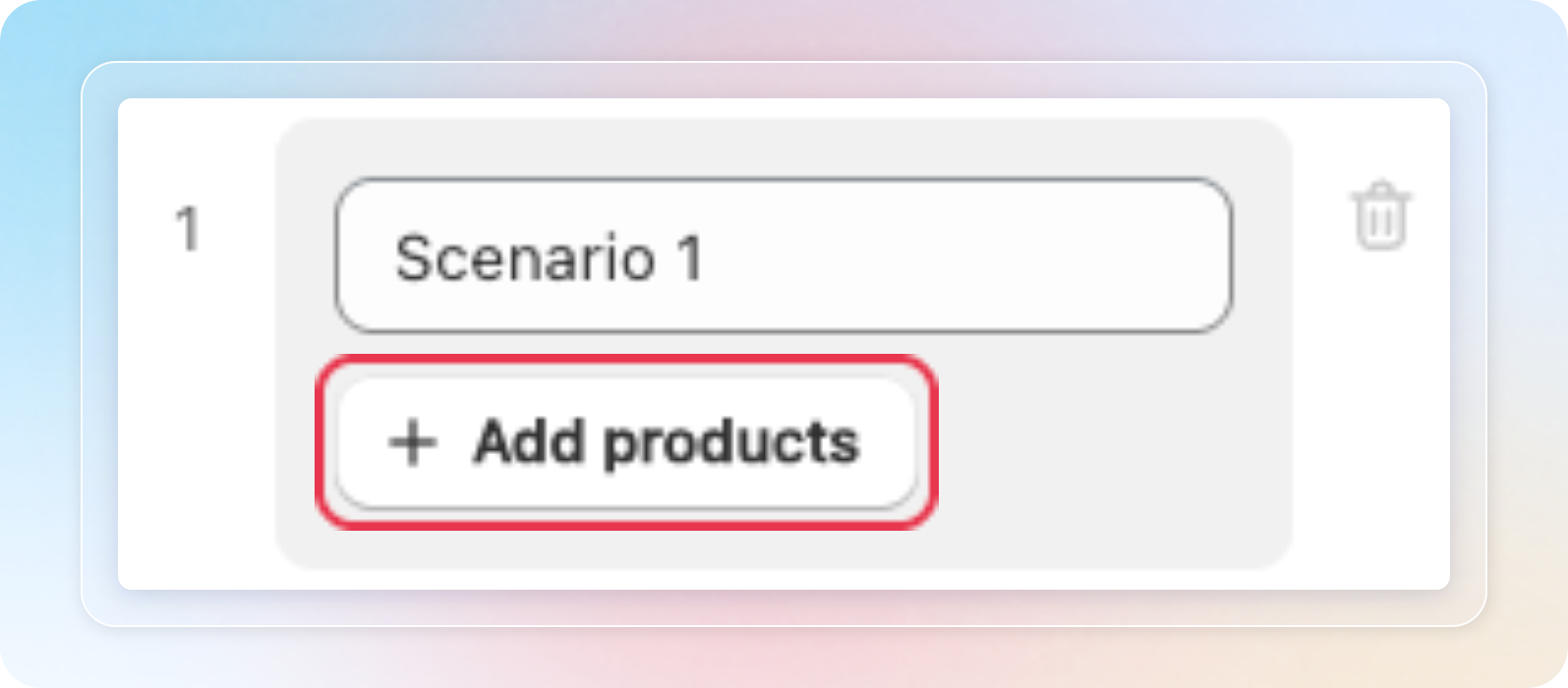
- Click Add products and pick the products for that scenario.
- Click Add scenario for each extra scenario you need.
You need at least 2 scenarios and can have up to 10. The badge above the list shows how many you have used.
To remove a scenario, click the delete icon beside its card. There is no confirmation step, and the scenario's column of points disappears from the Scoring grid at the same time.
Deleting is not saved until you click Save. Discard asks you to confirm, then rolls the quiz back to its last saved state. The scenario returns, and every other unsaved edit is lost. On a quiz you have never saved, Discard leaves the editor instead.
You cannot delete a scenario while only 2 remain. The delete icon is disabled, and its tooltip reads "Score Mode needs at least 2 scenarios".
Give answers points
The Scoring grid sits next to the scenario list. Rows are your answers, and columns are your scenarios.
Type a number in a cell to give that answer points towards that scenario. Leave a cell empty and it counts as 0.
Negative points are allowed. They lower a scenario's total, but they never rule it out.
After you try to save, any answer you have not scored carries a Not scored badge.
On a multiple choice question, every answer the shopper ticks adds its points. Path-based is locked for quizzes with multiple choice questions, but Score mode is not.
Spot a scenario that cannot win
Highest possible score is the last row of the grid. It shows the most points each scenario could reach.
If one scenario tops out far below the strongest, the app warns you. It suggests giving that scenario answers which score only for it. This warning appears once every answer has been scored.
Set the tie-break order
When two scenarios finish on the same total, the one higher in the list wins.
Once you have scored at least one cell, the Scenarios panel shows your tie rate. The line reads "List order decides X% of possible outcomes". Click the info icon beside it to open How ties are decided. The popover names the scenario pairs that tie most often, and which one wins.
Drag a scenario by its handle to move it. Put the scenario you would rather show nearer the top.
What stops you saving
Score mode blocks a save when:
- Your quiz has fewer than 2 scenarios.
- Any scenario has no name.
- You set the quiz to Active while a scenario still has no products.
A banner at the top of the grid names the problem and scrolls you to it. You can save a draft with products still missing, but you cannot go live.
What shoppers see
The shopper answers the quiz, and your points are added up across every answer they picked. The highest total wins.
Your result page then shows that scenario's products. Shoppers never see a score, and never see your scenario names.
There is no separate result page per scenario, and no fallback list. The save rules above make sure every live scenario has products.
Tips
- Start with a small range, such as 0 to 3 points. Large numbers make ties rarer but are harder to reason about.
- Give each scenario a few answers that score only for it. This is the quickest way to lower your tie rate.
- Use negative points when an answer works against a scenario. A tight budget answer can pull down a premium routine.
- Reorder scenarios deliberately. The order you happened to create them in is doing real work on ties.