Embed survey in email
Let customers answer your first survey question directly inside an email, no need to open your store first.
There are two ways to turn this on: the Embed email channel, or Inline question inside Post-purchase email.
Note: Available on all plans.
Both ways only work with a first question of type Single choice, Satisfaction, Star rating, or Number scale. If your first question is a different type, change it or reorder your questions before enabling either one.
Prerequisites
- A survey whose first question is Single choice, Satisfaction, Star rating, or Number scale
- Access to edit the HTML of your email platform's template (Klaviyo, Mailchimp, Omnisend, Shopify Email, or another ESP)
Steps
Step 1: Open the Channel tab
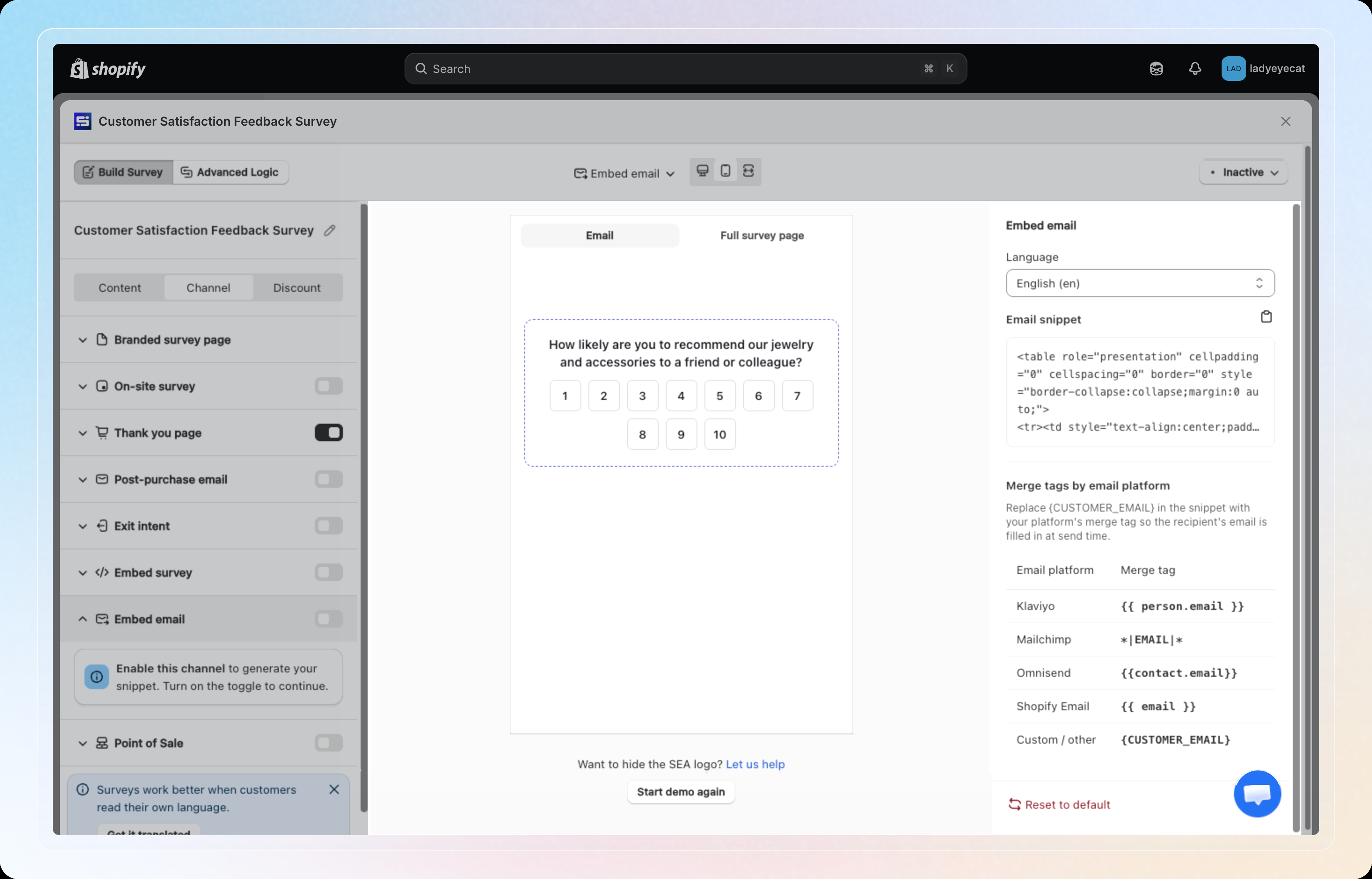
In the survey editor, click the Channel tab, then select Embed email from the channel list.
Step 2: Save your survey and enable the channel
Save your survey with a supported first question to generate the Email snippet. Turn on the toggle for Embed email to make the link in that snippet active for shoppers.
Step 3: Pick a language
Choose the Language for the embedded question and answers.
Step 4: Copy the snippet
Click the copy icon next to Email snippet to copy the generated HTML.
Step 5: Replace the merge tag
The snippet contains a placeholder {CUSTOMER_EMAIL}. Replace it with your email platform's merge tag so the recipient's own email is filled in when the email sends:
| Email platform | Merge tag |
|---|---|
| Klaviyo | {{ person.email }} |
| Mailchimp | *|EMAIL|* |
| Omnisend | {{contact.email}} |
| Shopify Email | {{ email }} |
| Custom / other | {CUSTOMER_EMAIL} |
Step 6: Paste into your email template
Paste the snippet into your email platform's HTML editor, in the email you want to include the question in.
Alternative: enable through Post-purchase email
Skip the snippet and the HTML edit. Turn on Inline question inside your existing Post-purchase email channel instead.
- In the survey editor, click the Channel tab, then select Post-purchase email. Turn on the channel if it isn't already active.
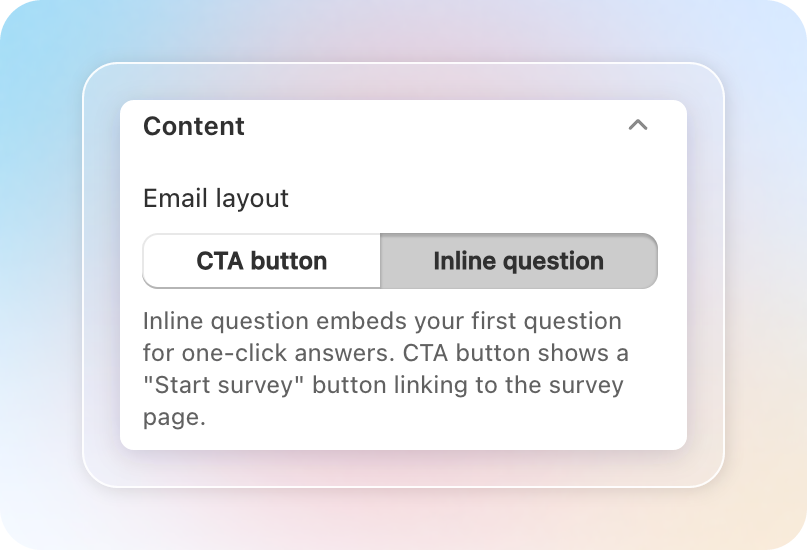
- In the Content section, find Email layout. Choose Inline question instead of CTA button.
- Save your survey. Shoppers now see the question inline in the email, same as Embed email.
If your first question isn't supported, a warning banner appears with a shortcut to fix it.
How it works
This behavior is the same for both channels above.
- Shoppers click an answer directly in the email. For a single-question survey, their answer is recorded immediately and they're taken to your store's survey thank-you page.
- If your survey has more than one question, clicking an answer opens the full survey page with that answer pre-filled. The answer isn't recorded until the shopper finishes the rest of the survey.
- Use the Email / Full survey page preview tabs in the panel to compare the two views. One shows what the recipient sees in their inbox, the other shows the continuation page.
Filter responses by channel in Analytics
Responses from each path use a different channel tag. In Analytics, filter by Embed email for the standalone channel. Filter by Post-purchase email for the inline question inside that channel, the same filter CTA button responses use.
Tips
- Test your snippet by sending yourself a preview email from your email platform before sending to your full list.
- If you change the first question's type to something unsupported later, the snippet stops generating. Switch it back to a supported type to fix it.
- Prefer Post-purchase email if you don't want to touch your ESP's HTML editor.