Quizzes now sell subscription plans on the result page
Products your quiz recommends can be bought as a subscription without leaving the result page. The plans come from the subscription app you already use, such as Joy Subscriptions. SEA Survey sells them. It does not create them.
Available on all plans. Your store's payment provider must support subscriptions, and at least one product in the quiz needs a plan.
What changed
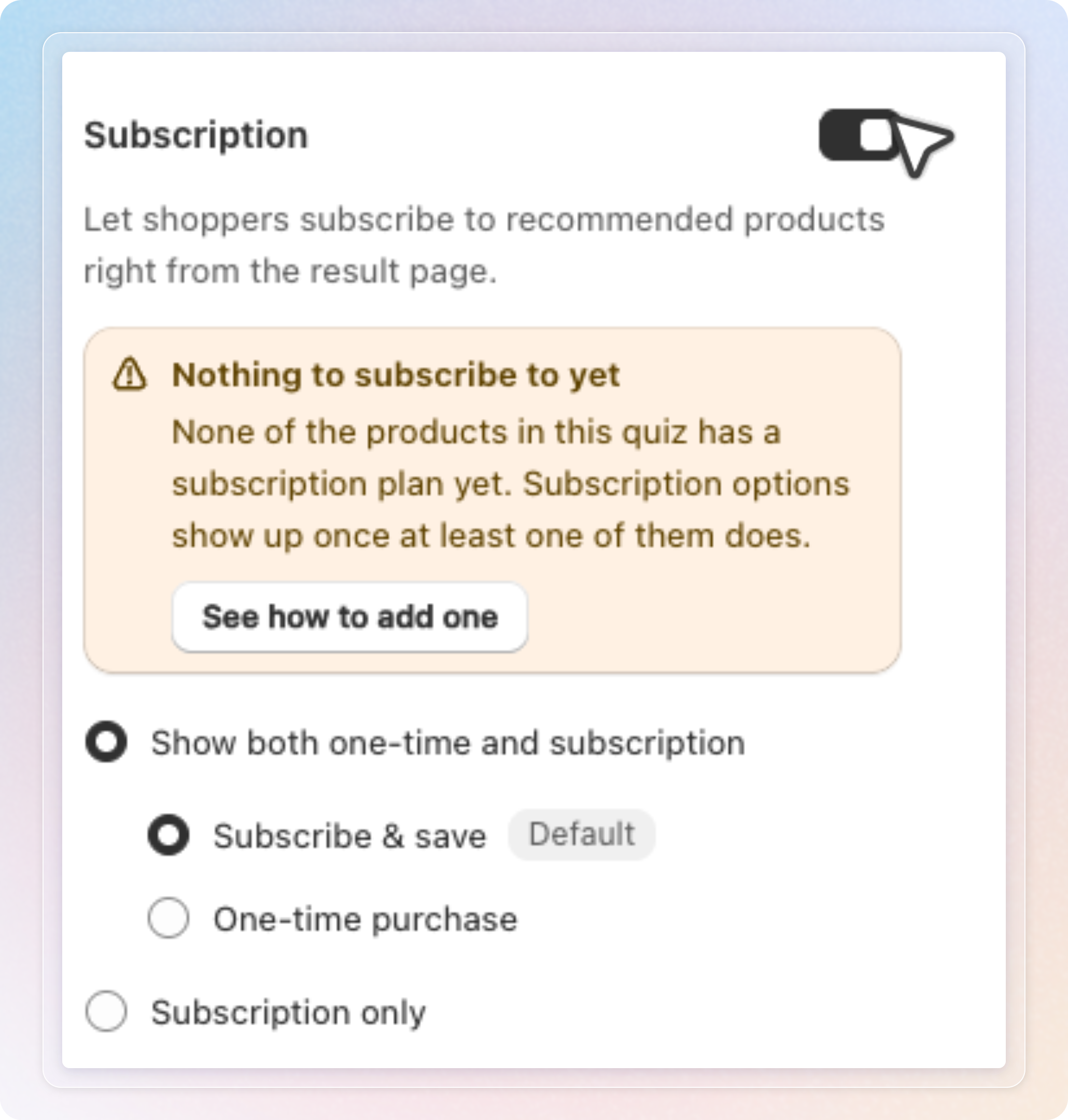
A Subscription section on the Result page. Open a quiz, go to Build quiz, then Result page. Turn on Subscription. It is off by default.
Two ways to sell. Show both one-time and subscription lets shoppers choose, and you pick whether Subscribe & save or One-time purchase is selected first. Subscription only hides buying once.
Plans are visible while you build. The product picker marks products with a plan, for example 2 plans. Hover to see plan names. The editor preview shows the result page as shoppers will see it.
Warnings before you go live. A locked toggle means your payment provider does not support subscriptions, with a link to Payment settings. A Nothing to subscribe to yet banner means no product in the quiz has a plan. Its See how to add one button opens a three step guide. In Preview results, a warning icon marks a result whose products have no plan.
A save check for live quizzes. An Active quiz with Subscription on cannot save while a result has products but none with a plan. A Failed to save banner names the result. Inactive quizzes are not checked.
On your store. Products with a plan carry a Subscription badge. Their popup gets a Delivery frequency row, prices follow the plan, and cheaper plans show Save X%. Add all to cart follows your default. Under Subscription only, products without a plan are hidden and the next ranked product moves up.
Subscription revenue in Analytics. The Total revenue from Quiz card shows "Includes $X from subscriptions" once subscription orders come from the quiz.
How to use: Open your quiz, click Result page under Build quiz, turn on Subscription, pick a display option, and click Save.
See Sell subscription plans on your quiz result page for the full walkthrough.