How to Connect SEA Survey to Claude with MCP
Connect SEA Survey to Claude, or any MCP-compatible AI client, then query and manage your surveys and quizzes straight from your AI assistant.
MCP (AI Connector) is in Beta.
Steps
Step 1: Open the MCP integration
- In the SEA Survey sidebar, click Integrations.
- Find the MCP card and click Try now.
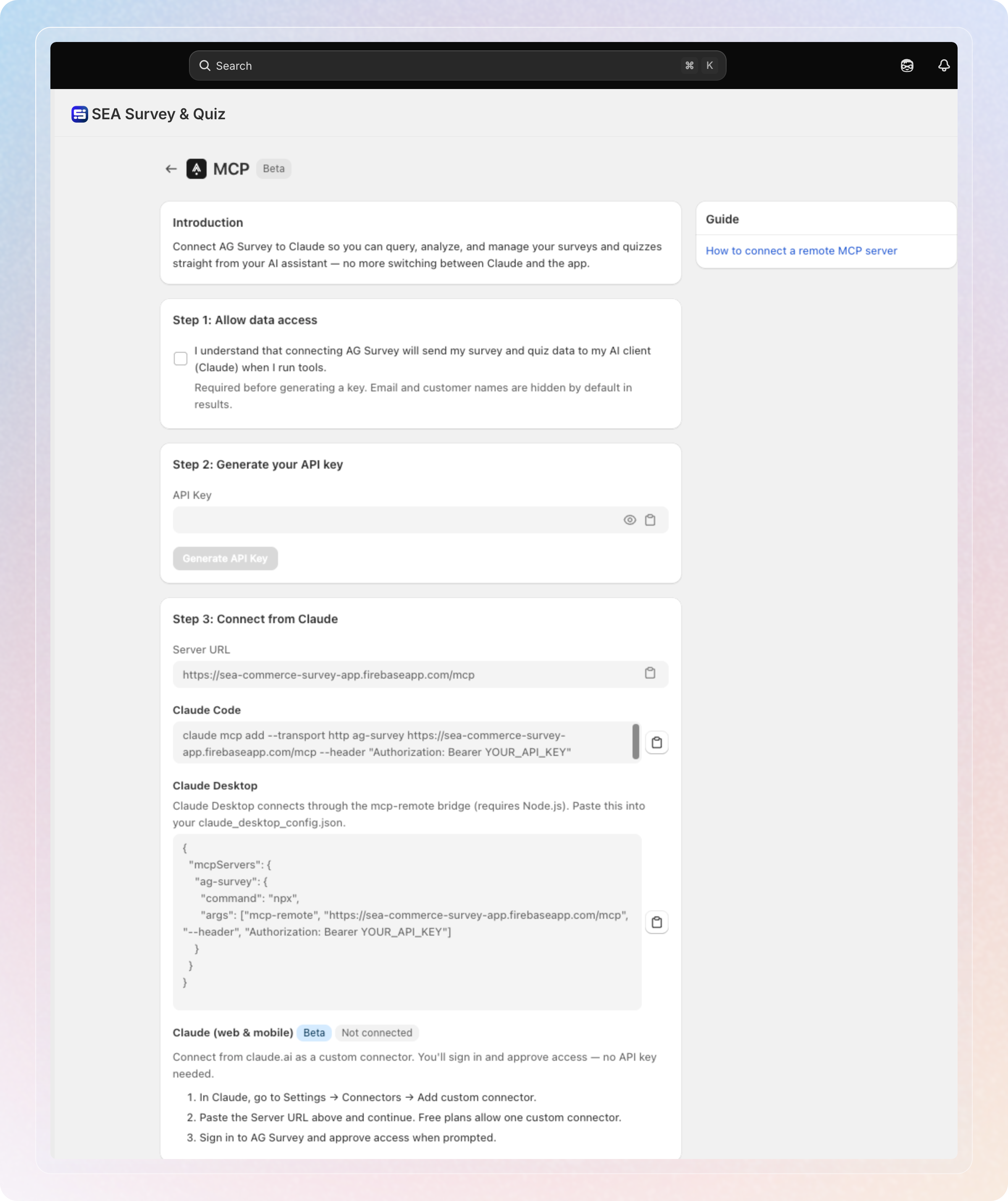
Step 2: Allow data access
Check I understand that connecting SEA Survey will send my survey and quiz data to my AI client (Claude) when I run tools. This is required before you can generate a key.
Customer email, name, and phone number are hidden by default in every result Claude receives. Checking this box is the only way to include them, and Claude cannot turn it on by itself.
Step 3: Generate your API key
Click Generate API Key. Copy it and keep it somewhere secure. You'll need it for Claude Code or Claude Desktop.
Once a key exists, a Revoke key button appears next to it. Click it to disable that key right away. Claude Code and Claude Desktop stop working until you generate a new one.
Step 4: Connect from your AI client
Pick the option that matches how you use Claude:
-
Claude Code: run the command shown under Claude Code. It includes the server URL and your API key as a bearer token.
-
Claude Desktop: paste the JSON snippet under Claude Desktop into your
claude_desktop_config.json. This connects through themcp-remotebridge and requires Node.js. -
Claude (web & mobile): no API key needed.
- In Claude, go to Settings → Connectors → Add custom connector.
- Paste the Server URL.
- Sign in to SEA Survey and approve access when prompted. See Step 5 below for what you're approving.
Free Claude plans allow one custom connector. This step happens entirely in Claude's own settings, not in SEA Survey.
Once connected, a Disconnect Claude web button appears on this page. Click it to remove Claude's web and mobile access without touching your API key.
Step 5: Choose an access level (Claude web & mobile only)
When you approve the connection in Claude, pick one of two access levels:
- Read-only: Claude can view your surveys, quizzes, responses, and analytics. It cannot create or change anything.
- Full access: Claude can do everything Read-only can, plus create, edit, and publish surveys and quizzes on your behalf.
Picking Read-only also removes every editing tool from Claude's toolset, so it never suggests a change it cannot actually make.
Claude Code and Claude Desktop connect with your API key instead of this approval screen, and always have full access.
What Claude can do
Once connected, Claude works with 26 tools grouped into three areas.
- View (9 tools): list and look up your surveys, quizzes, and responses, and check that the connection is working.
- Analytics (5 tools): pull a survey's overview stats, and see how respondents answered each question. See which products customers bought after responding (post-purchase attribution), and view quiz analytics.
- Manage (12 tools): create, edit, and delete surveys and quizzes, turn them active or inactive, and publish changes. Every publish goes through the two-step flow described below.
Security
- Personal data stays hidden by default. Customer email, name, and phone number are left out of every result by default. They're only included if you check the data access box in Step 2. Claude cannot turn this on by itself.
- Publishing needs two steps. Claude previews a survey or quiz first, then confirms separately, so it cannot publish something by accident. The preview expires after 5 minutes.
- Every write is logged. Every action that creates, edits, activates, or publishes something is recorded on our side. This gives a record of what Claude changed.
- Plan limits are enforced, not skipped. If an action would exceed your plan, like activating too many surveys, Claude gets a clear message. It explains the limit and how to upgrade, and never fails silently or activates something anyway.
Tips
- Copy your API key when it's generated. Treat it like a password.
- Claude (web & mobile) is the simplest option if you don't need Claude Code or Desktop. It skips API key management entirely.
- To change the access level later, click Disconnect Claude web. Reconnect and pick a different level on the approval screen.