Group short answers into categories with AI
Let AI sort the answers of a short answer question into categories, then send them to your marketing apps.
You no longer read and label each answer by hand. You check the categories, fix what you want, and push them to Klaviyo, Mailchimp or your automations.
Free on all plans. Each store can categorize up to 2,000 responses per calendar month.
Before you start
- Your survey needs at least one Short answer question with answers.
- Collect at least 25 answers to that question. With fewer answers the categories can change a lot later.
- To send categories to an app, connect the app first on the Integrations page.
- Klaviyo, Mailchimp, Omnisend, Zapier, n8n and Custom endpoint need the Growth plan or higher. Shopify Flow works on every plan.
- Stores installed before July 16, 2026 need Premium for Custom endpoint. Stores installed before September 5, 2025 can use all of them on any plan.
Open the AI convert response page
From Responses:
- In the SEA Survey sidebar, click Responses.
- Stay on the Survey tab.
- Click AI convert response at the top of the page. It opens on the survey you had selected.

From Analytics:
- In the SEA Survey sidebar, click Analytics.
- In the Basic analytics card, click Survey analytics.
- Pick your survey.
- In the Question filter, pick a short answer question.
- In the Responses by category card, click Convert answers with AI. After your first run, the button reads Manage categories.
The Recent answers card also shows Convert answers with AI before your first run.
Convert answers into categories
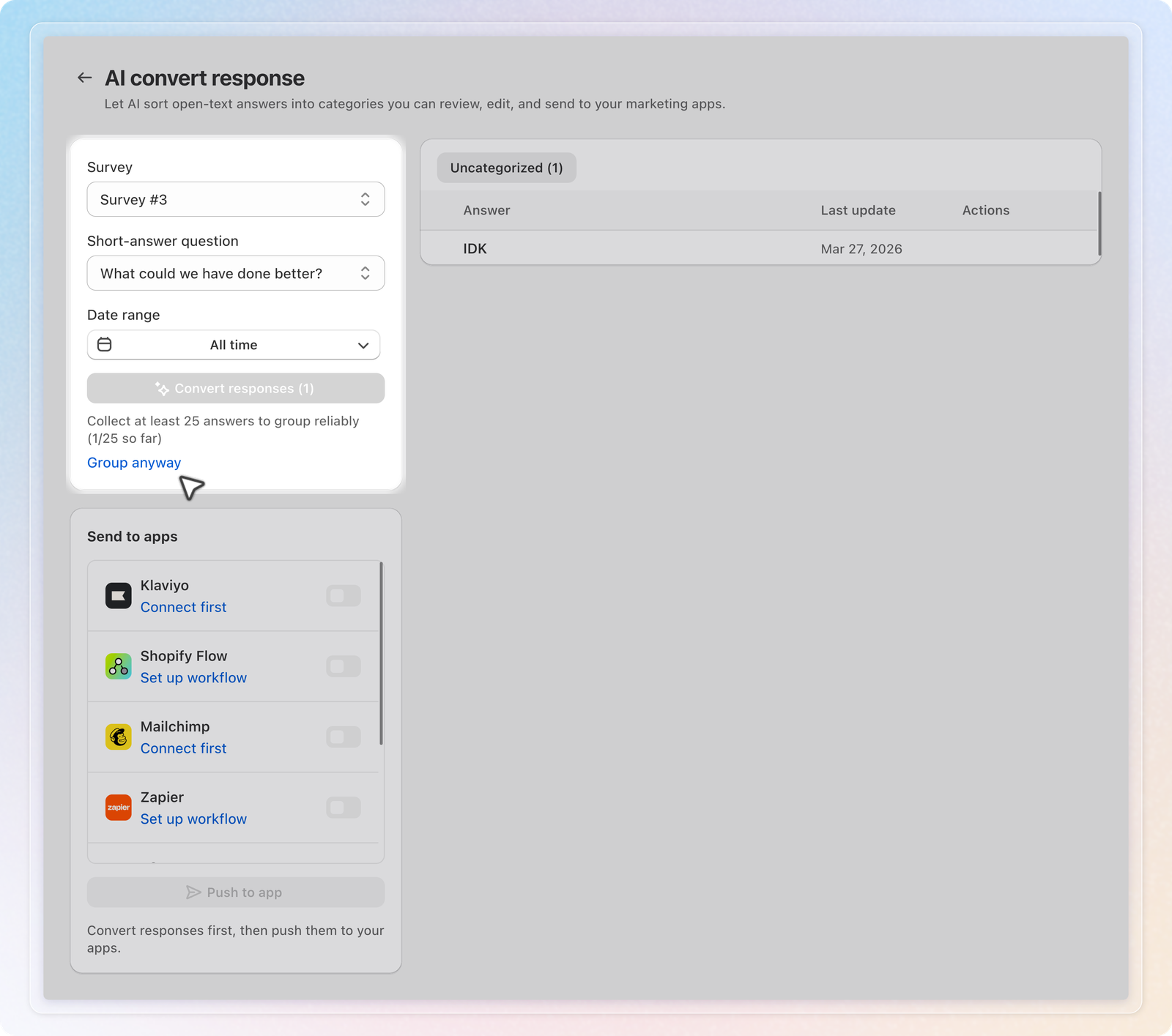
- In Survey, pick the survey.
- In Short-answer question, pick the question. Each question keeps its own set of categories.
- In Date range, keep All time or pick dates. The range decides which answers the AI sorts and which ones the table shows.
- Click Convert responses. The number in brackets is how many answers the AI will sort.
- Wait while the bar shows Sorting each answer. The run continues in the background, so you can leave the page.
If this page is open when the run ends, a message shows how many responses went into how many categories.
Fewer than 25 answers. The Convert responses button is greyed out. A line under it shows your count, for example 1/25 so far. Click Group anyway to run it now.
Review and edit the categories
The answers table has two tabs:
- Categorized lists each category with its number of answers. The largest category comes first, and Other always comes last.
- Uncategorized lists answers the AI has not sorted yet, such as answers that arrived after your last run. To sort them, use Convert uncategorized responses.
Before your first run, only the Uncategorized tab shows.
Click the arrow at the start of a category row to see its answers. Hover over a row to show its buttons in the Actions column:
- Rename changes a category name, up to 60 characters. Press Enter or click the check button to save. Press Esc to cancel.
- Change to moves one answer to another category. Pick Move to Other when no category fits.
Answers the AI flags. Some answers carry a badge:
- Needs review means the AI was not sure about the category.
- Couldn't process means the AI could not sort the answer.
Hover over the info icon next to the badge. Click Confirm category to keep the category and clear the badge. To move the answer instead, use Change to.
The table shows answers one page at a time. Click Load more answers at the bottom to see more.
Sort new answers later
After the first run, Convert responses opens a menu with two options:
- Convert uncategorized responses sorts only the new answers into your current categories. Its badge shows how many answers are waiting.
- Re-run from scratch builds a new set of categories from all answers.
Re-run from scratch deletes your current categories and every change you made by hand. The Re-run grouping? window asks you to confirm. Click Re-run anyway to go ahead. Push again afterwards so your apps get the new categories.
Send categories to your apps
The Send to apps card lists 7 apps: Klaviyo, Shopify Flow, Mailchimp, Zapier, n8n, Omnisend and Custom endpoint.
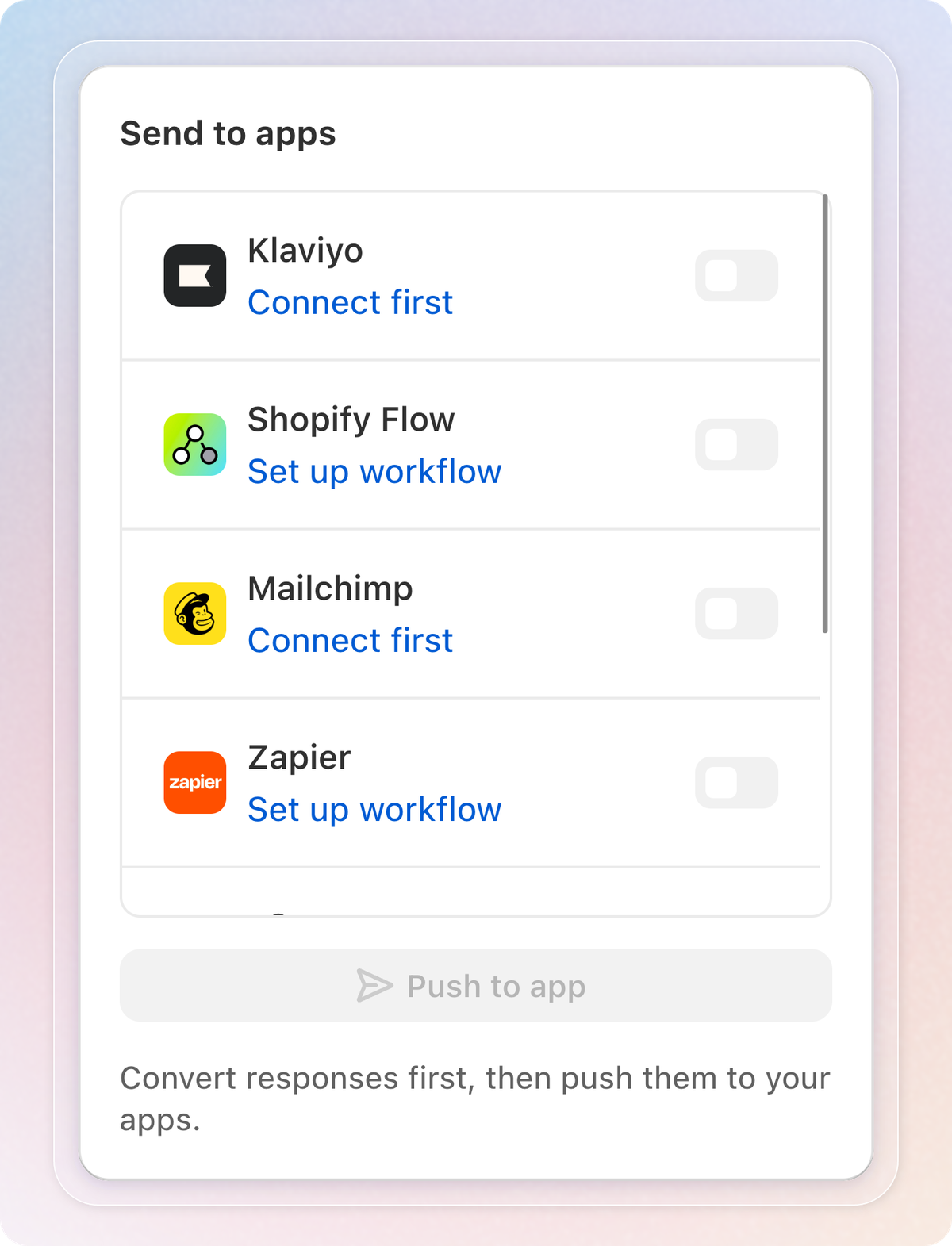
- Turn on the toggle of each app that should get the categories. You can only turn on apps that are connected.
- Click Push to app.
- Read the Push categories to your apps? window. It shows how many customer profiles will change and the field name. Click Push now.
When the push ends, the card shows the result, for example "12 pushed · 0 failed · 3 skipped". Each app row shows when it last got data, or Never pushed.
App not connected yet. Klaviyo, Mailchimp and Omnisend show Connect first. Zapier, n8n, Custom endpoint and Shopify Flow show Set up workflow. Click it to open that app's page in Integrations.
Automation apps need a workflow first. Zapier and n8n only receive categories once a workflow listens for the Response Categorized trigger. In Shopify Flow, start a workflow with the Sea Survey Response Categorized trigger. Answers from the Thank you page fire Sea Survey Response Categorized (with order) instead.
What each app receives
| App | What it gets |
|---|---|
| Klaviyo, Omnisend | A profile property with the category name, on profiles that already exist there. Answers without an email or a profile are skipped. |
| Mailchimp | A tag with the field name and the category, on contacts Mailchimp already has. Others are skipped. |
| Shopify Flow | A trigger for each answer from a customer with an account. Other answers are skipped. |
| Zapier, n8n, Custom endpoint | Every answer, with its category and its tone in sentiment: positive, negative or neutral. |
The field name comes from the question, for example survey_category_what_could_we_have_done_better. It stays the same if you rename the question later.
Keep your apps up to date. After a rename, a move or a new run, a banner shows how many responses changed since your last push. Click Push again to send the changes. The banner only counts apps you pushed to before. A rename is sent again only to Klaviyo, Mailchimp and Omnisend.
Stay within the monthly limit
Each store can categorize 2,000 responses per calendar month, across all surveys and questions. When you reach the limit, a banner appears on the page. Click Contact us to ask for a higher limit. Answers past the limit wait in Uncategorized. No new run can start until next month or until we raise your limit.
Re-run from scratch counts every answer again toward the limit. Answers to the same question with the same words count once, even if capital letters or spaces differ.
Tips
- Rename categories with words your team already uses before you push. Those names become values in Klaviyo and tags in Mailchimp.
- Run Convert uncategorized responses each week so new answers are sorted before your next campaign.
- Build a Klaviyo segment on the category property. Then send a matching email, for example a shipping update to everyone in a shipping category.
- Check Needs review answers first. They are the ones most likely to sit in the wrong category.