Analytics
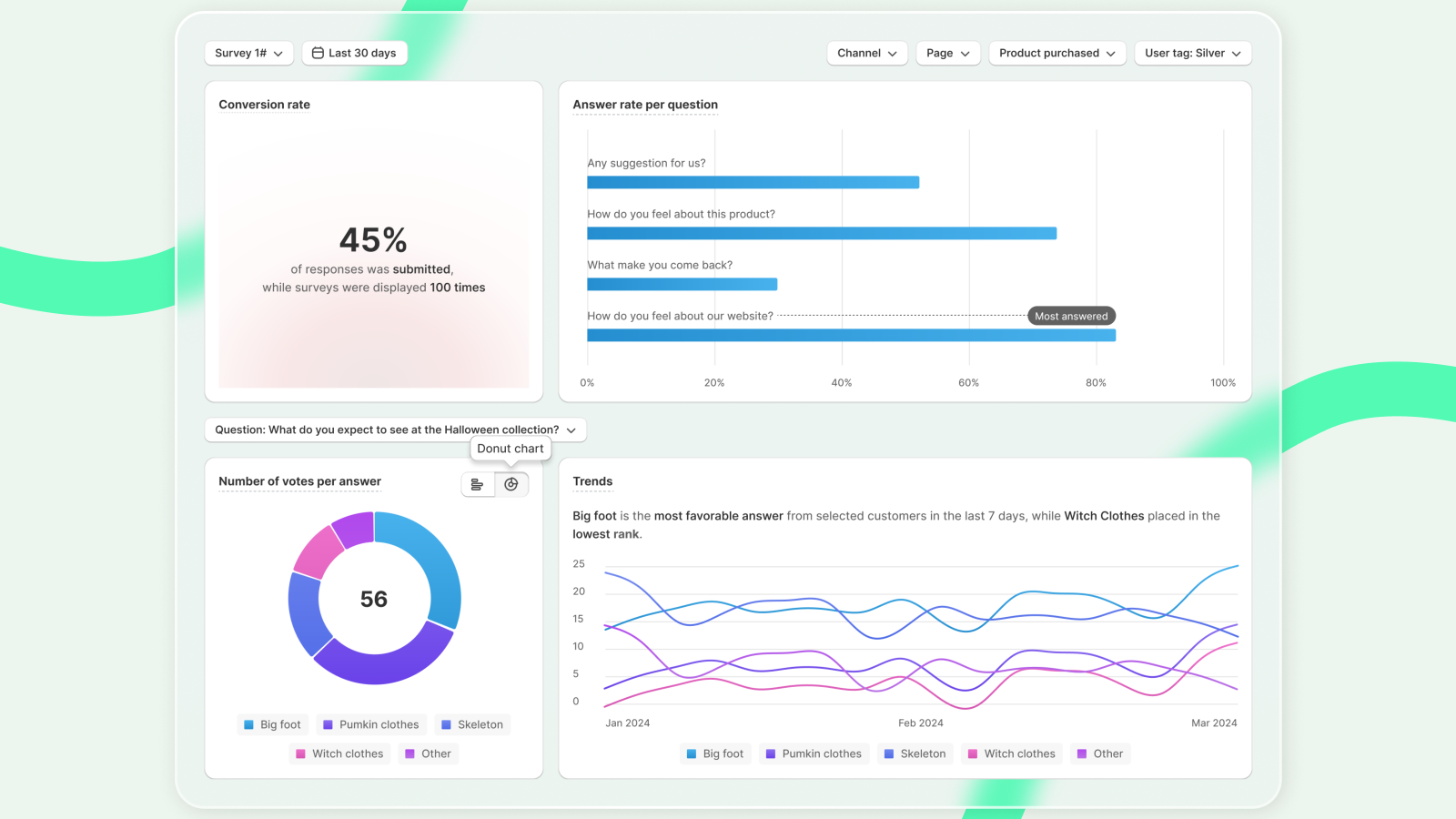
Transform your survey responses into valuable business insights with our analytics dashboard. Here you'll find a comprehensive view of customer feedback presented through intuitive charts, trend analysis, and key metrics that highlight what matters most.
Each visualization is designed to help you quickly identify patterns in customer behaviour, spot areas for improvement, and discover opportunities for growth. Whether you're tracking satisfaction scores, analysing purchase preferences, or measuring customer loyalty, our analytics tools make it easy to understand the data and take action to enhance your store's performance.
Why you should use analytics dashboard
Transforming raw survey data into powerful business decisions, our analytics dashboard helps you:
- Get clear customer insights: Understand what your customers think through easy-to-read visualizations and metrics. Spot trends and patterns that might otherwise go unnoticed in raw survey responses.
- Make data-driven decisions: Base your business decisions on solid data rather than guesswork. Whether it's product improvements, customer service enhancements, or marketing strategies, let real customer feedback guide your choices.
- Save time and effort: Skip the manual data analysis. Our dashboard automatically processes your survey responses and presents them in ready-to-use formats, letting you focus on taking action rather than crunching numbers.
- Track progress over time: Monitor how customer sentiment and preferences evolve. Compare results across different time periods to measure the impact of your improvements and identify long-term trends.
Start leveraging your survey data today to unlock valuable customer insights and drive your store's growth with confidence.
How to configure analytics to your need
Follow these steps to customize your analytics view and get exactly the insights you're looking for:
Access the Analytics Section
Click on "Analytics" in the main app menu to open your analytics dashboard.
Select your survey
Choose which survey you want to analyse from the dropdown menu. By default, you'll see data from your first created survey.
Set your time range
Use the date picker to specify your analysis period.
Apply filters for detailed analysis
- Distribution channels (Branded survey page, on-site survey)
- Pages where surveys appear
- Products purchased by respondents
- Customer tags
At this point, you already see charts and metrics about your filtered survey results.
Analyse a specific question
Click on any question in your survey to dive deeper into its responses. Each question type has its own specialized analytics view.
Pro tip: Start broad with your analysis, then use filters to drill down into specific areas of information that interest you most.
With these simple configuration steps, you'll be able to uncover meaningful patterns and insights that can drive real improvements for your store.
Your analytics dashboard is now configured to show exactly the data you need – but this is just the beginning of your journey toward data-driven decision making. Let's explore how to interpret these visualizations and turn them into actions that drive real results for your store.
In the next section, we'll show you exactly how to read your data and use these insights to make impactful business decisions.